Guide··6 min read

Setting up Echo Live Alpha

Welcome to Echo Live

Echo Live is a modular AI-powered voice changer that combines RVC (Retrieval-based Voice Conversion) with a full DSP effects chain. This means you can use high-quality AI voice conversion AND layer professional audio effects on top — imagine your RVC character talking through a military radio, a cathedral reverb, or a distorted megaphone. The modular design lets you mix and match freely.

We are currently in our technical Alpha, working to ensure that Echo Live runs reliably across as many hardware configurations as possible. As an Alpha tester, you may encounter bugs or rough edges — that is expected, and we genuinely appreciate your patience. In return, the app is completely free for Alpha testers with no feature restrictions.

If you encounter bugs or issues, please report them in our Discord community (https://discord.gg/nm9Exte8KD). Your feedback directly shapes what we build next.

Step 1: Get an RVC voice model

Echo Live works with .ONNX versions of RVC voice models. The Alpha does not ship with pre-packaged voices — you bring your own. There are two ways to get .ONNX models:

Option A — Download a community model: The RVC community has trained thousands of voice models. The best places to find them are the AI Hub Discord (discord.gg/aihub) — the largest RVC community with model sharing channels — and Hugging Face (huggingface.co), where many models are available for direct download. You can also find models on Weights.gg. Many community models are already available in .ONNX format.

Option B — Convert an existing model: If you have a .pth RVC model (the standard format from Applio or RVC-WebUI), use our free browser-based Model Converter (voicechanger.live/tools/model-converter) to convert it to .ONNX format. Upload the .pth file and download the converted .ONNX — no installation required.

Step 2: Import your voice into Echo Live

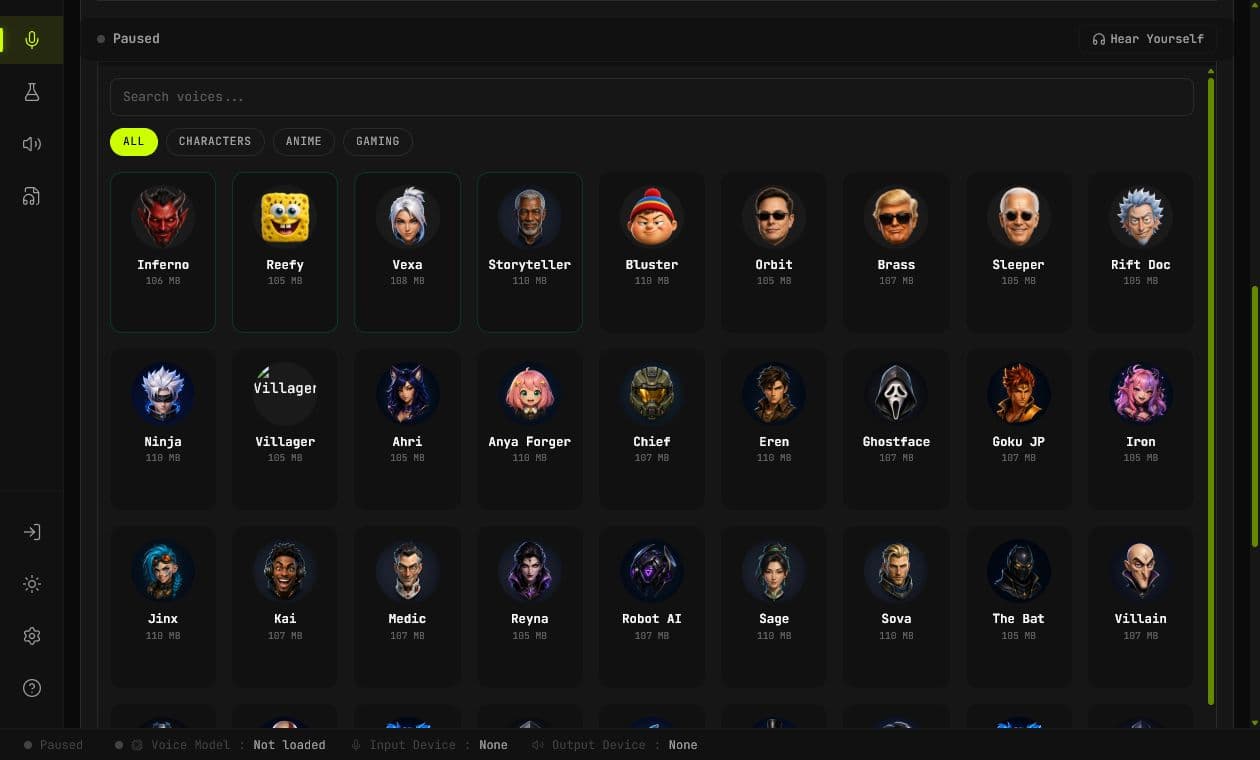
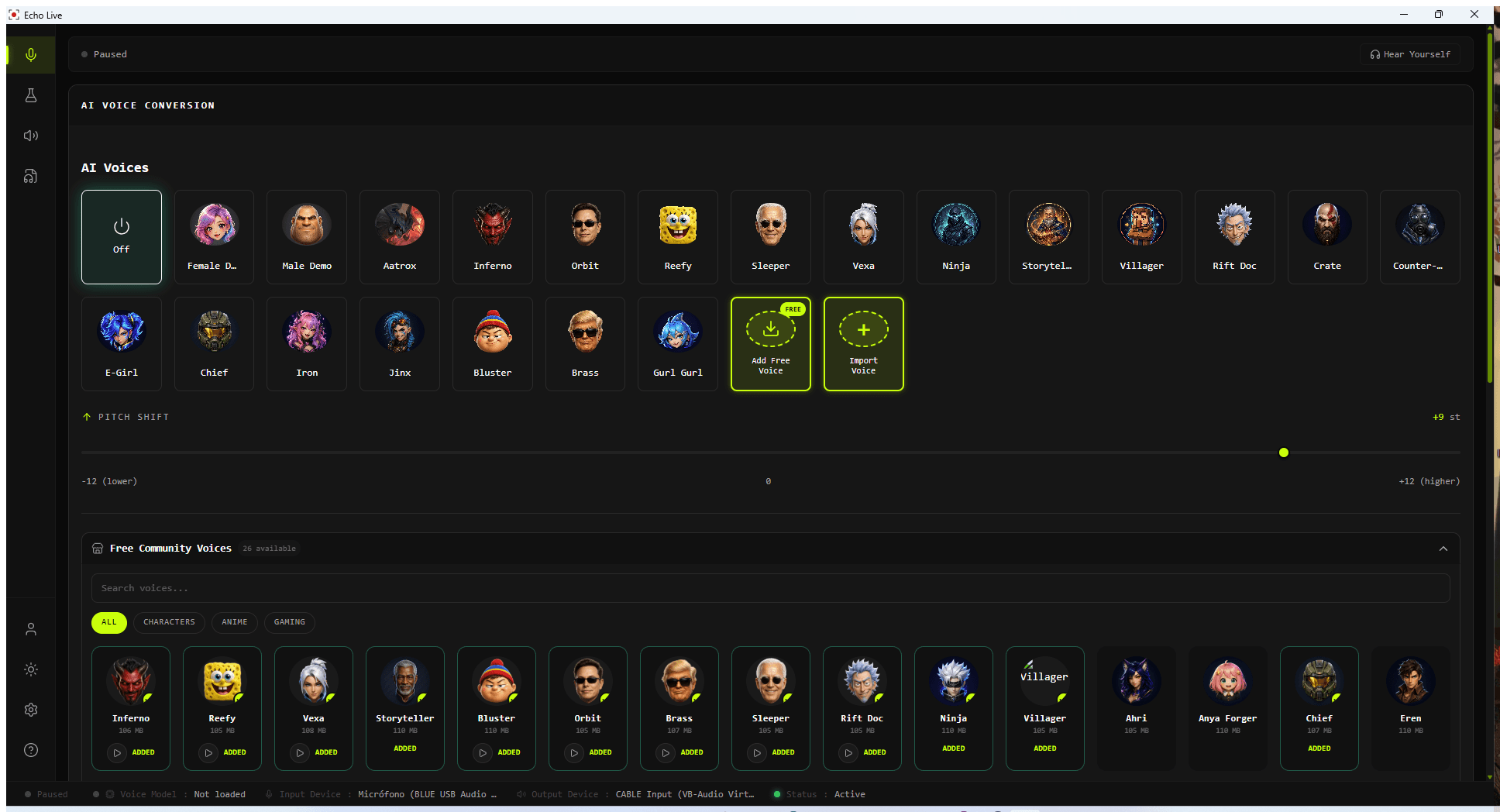
Open Echo Live and click "Add New Voice" in the voice panel. You will be prompted to: select your .ONNX model file, choose an image (this becomes the voice avatar displayed in the app), and give your voice a name.

Index files are optional and not required. If you have an .index file for your model, you can add it for potentially improved accuracy, but the voice will work without one.

Step 3: Configure performance settings

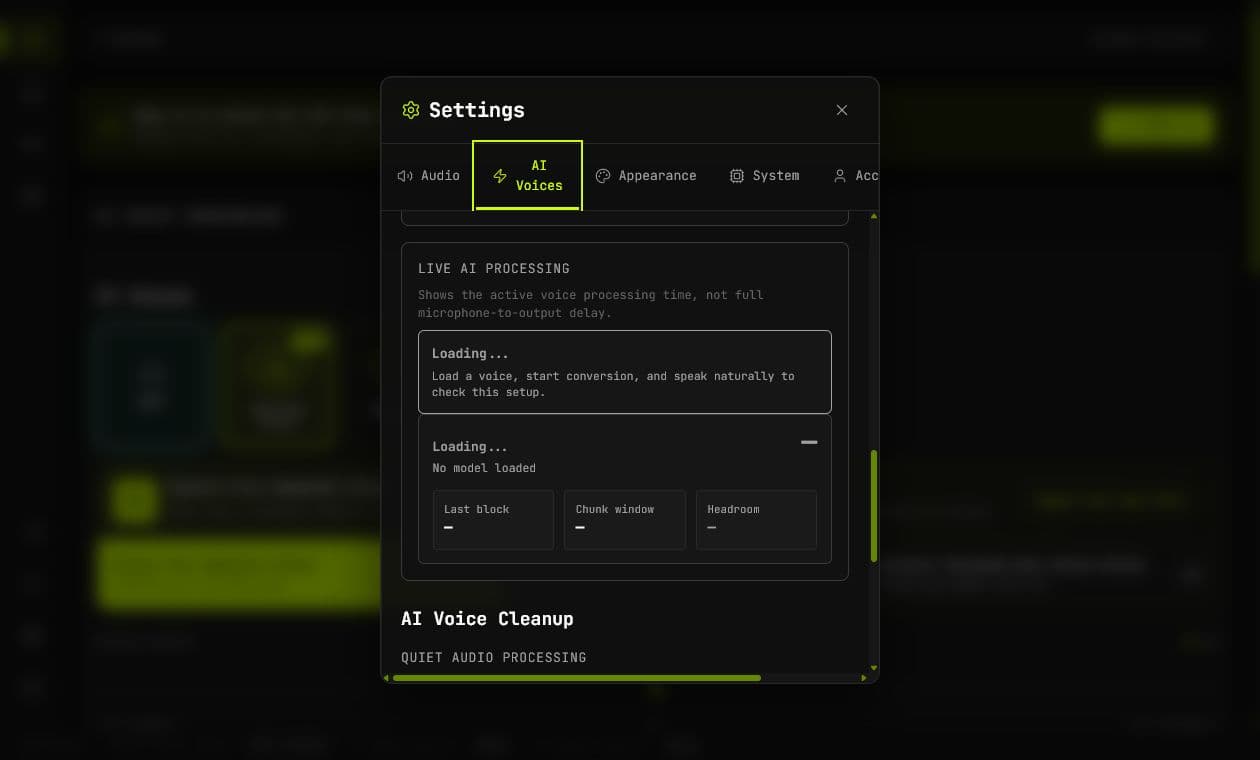
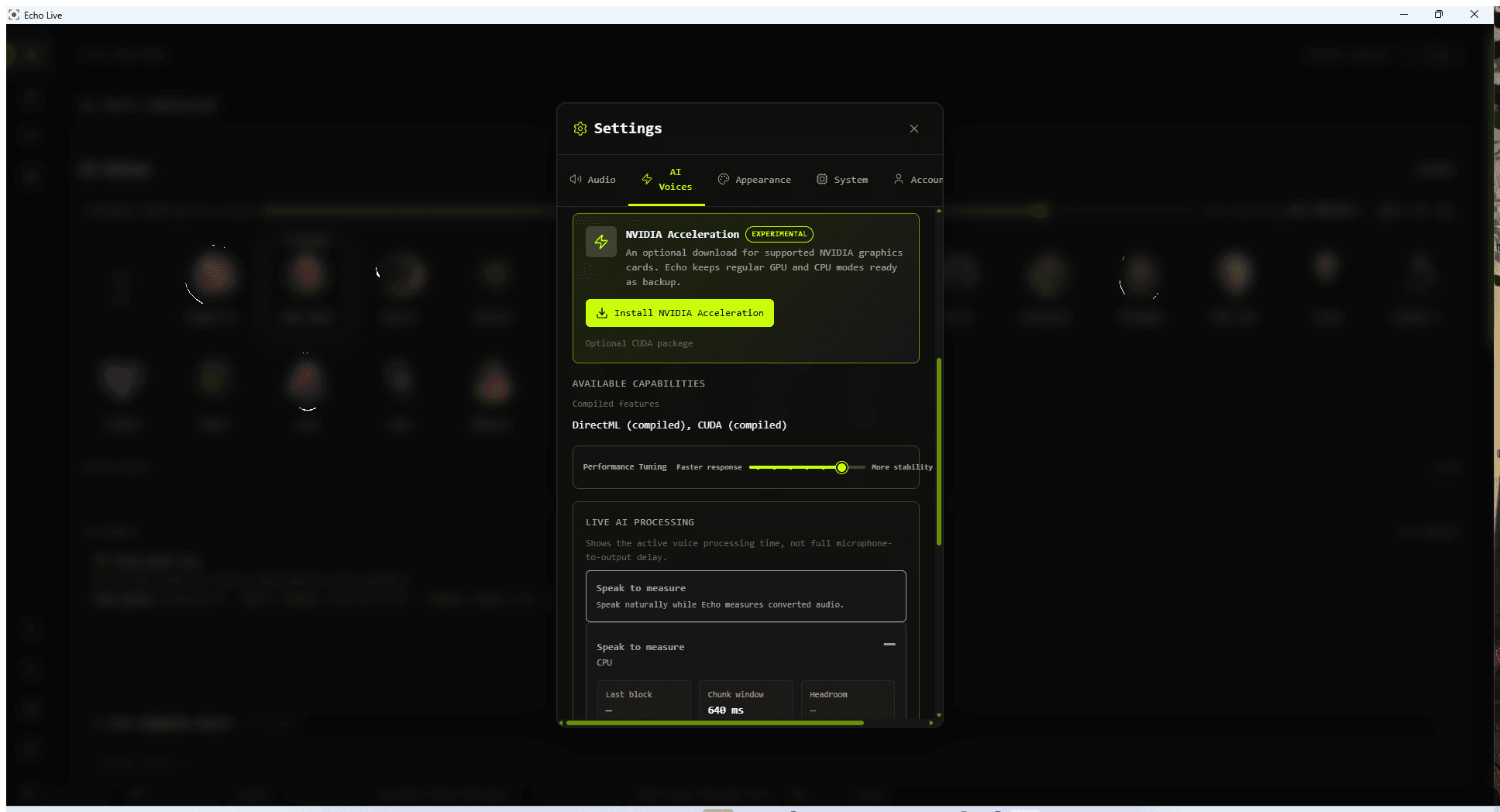
Navigate to the Settings area to tune RVC performance for your hardware. While RVC runs on both CPU and GPU, most users will get better results with GPU processing — lower latency, higher quality, and more headroom for effects.

Here are recommended starting points based on your GPU tier:

Mid-range GPU (RTX 3060, RTX 4060, RX 6700 XT): Chunk Size 48, Extra Context 8192, Cross Fade 4096. This provides a good balance between latency and voice quality for most use cases.

High-end GPU (RTX 3080+, RTX 4070+): You can push Chunk Size down to 32 or even 24 for lower latency while keeping Extra Context at 8192 and Cross Fade at 4096. Experiment to find the sweet spot for your card.

CPU mode (no dedicated GPU): Set Chunk Size to 96 or 128, Extra Context to 4096, and Cross Fade to 2048. CPU mode works but expect higher latency. This is best for testing rather than live conversation.

General rule: Lower Chunk Size = lower latency but more CPU/GPU load. If you hear audio crackling or dropouts, increase Chunk Size. If the voice sounds metallic or robotic, try increasing Extra Context.

Step 4: Activate voice conversion

With your voice imported and settings configured, here is how to turn everything on:

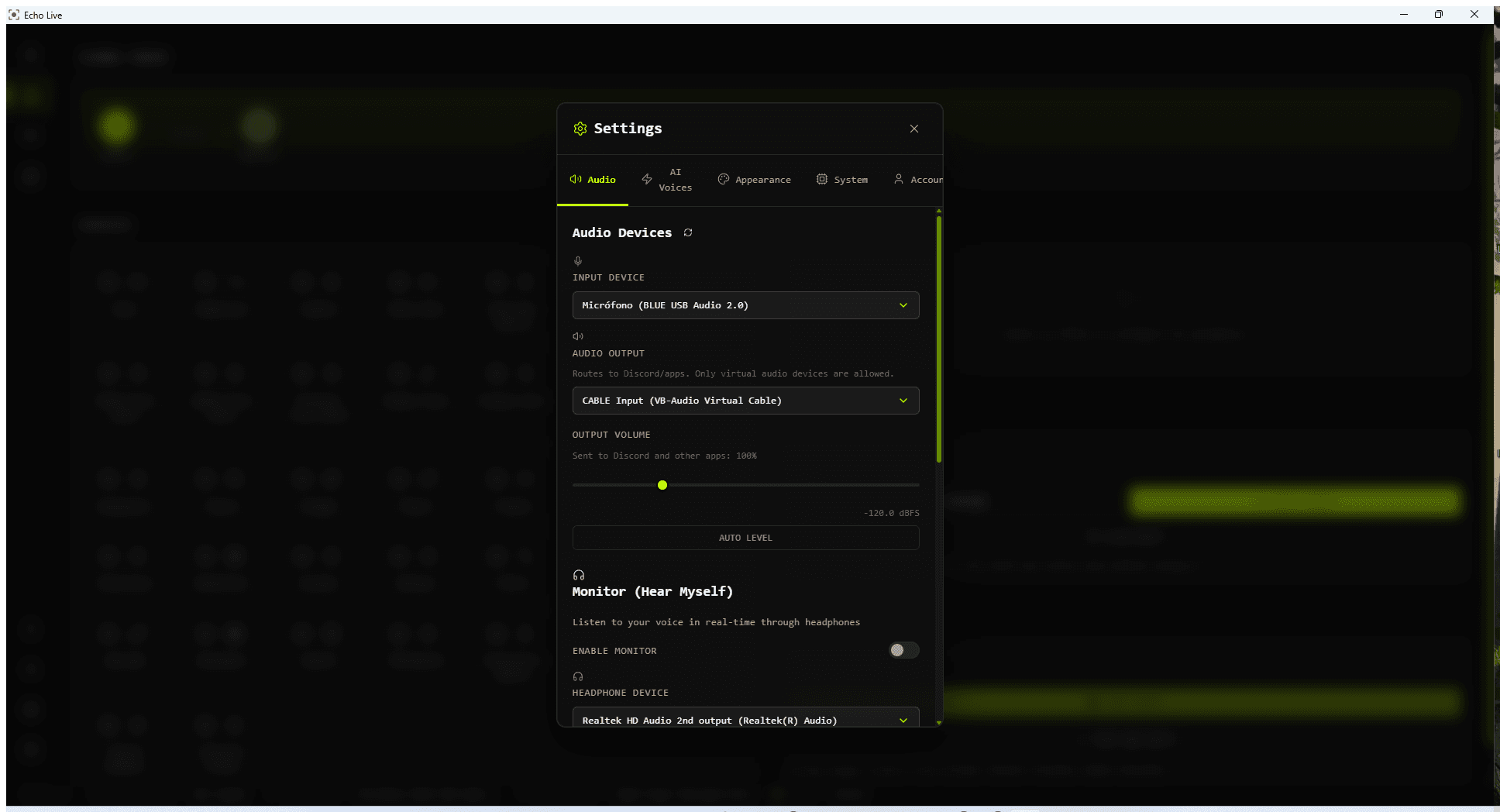
1. Make sure your microphone is selected in the Audio Input section.

2. Toggle "Audio Processing" ON using the main control toggle at the top of the app. This activates the audio processing loop. Without this enabled, the app only applies DSP effects (reverb, EQ, etc.) and does not run AI voice conversion.

3. In the Voice Conversion section, click "Load Model" to load your imported voice. Then switch "RVC" to ON. You should see the model status change to active.

4. Speak into your microphone — your voice should now be converted in real time through the loaded RVC model.

Monitoring and output

Toggle the Monitor on and off to hear yourself through headphones. This lets you verify the voice conversion is working before going live in Discord, a game, or a stream.

Echo Live routes processed audio through a virtual audio cable. In your target application (Discord, OBS, Zoom, etc.), select the Echo virtual microphone as your input device. Other users will hear your converted voice.

Optional: DSP effects and presets

Echo Live also includes a library of DSP effect presets that you can optionally layer on top of your RVC voice. These are completely optional — RVC works great on its own.

You can toggle the Noise Gate on at the input stage to cut background noise and keyboard clicks — this is recommended for cleaner results.

Beyond that, the fun part: try layering DSP presets on your converted voice. Want your RVC character to sound like they are talking through a military walkie-talkie? There is a preset for that. Want broadcast-quality polish? Try the Streamer Pro preset. The effects are applied on top of your AI voice, so experiment freely — you can always turn them off.

What to expect from the Alpha

You can expect multiple updates per week as we move from Alpha to Beta. We are actively working on: pre-packaged voice models (so you will not need to import your own), a built-in model browser, improved GPU compatibility, and performance optimizations for lower-end hardware.

We also have an upcoming Soundboard companion app in development that will integrate directly with Echo Live for streamers, gamers, and content creators.

Your feedback is invaluable during this phase. Report bugs, request features, and share your experience in our Discord — every report helps us build a better product.

Frequently asked questions

Do I need to bring my own voice models?+
Yes, during the Alpha. Echo Live works with .ONNX voice models. You can convert existing .pth models using our free browser-based Model Converter at voicechanger.live/tools/model-converter, or download pre-converted .ONNX models from community sources.
What GPU do I need?+
Any dedicated NVIDIA GPU with 4GB+ VRAM (GTX 1650 or better) provides a good experience. AMD GPUs are supported but NVIDIA currently offers the best performance. CPU mode is available for systems without a dedicated GPU, with higher latency.
Why does my voice sound robotic or crackling?+
Increase the Chunk Size in Settings. Audio crackling means your hardware cannot keep up with the current processing speed. Try Chunk Size 64 or 96. If the voice sounds metallic, increase Extra Context to 8192 or higher.
Is the Alpha really free?+
Yes. All features are free during the Alpha with no restrictions, no watermarks, and no time limits. We will introduce a freemium model in the future, but Alpha testers get full access.
How do I report bugs?+
Join our Discord community at discord.gg/nm9Exte8KD and report issues in the support channel, or use the Feedback form in your account dashboard at voicechanger.live/account.
alphaguidesetuprvcgetting-started

Try Echo

Free AI voice conversion. Download and start in under 60 seconds.