Browse all guides9 guides
Before You Start
- Studio is a Pro feature.
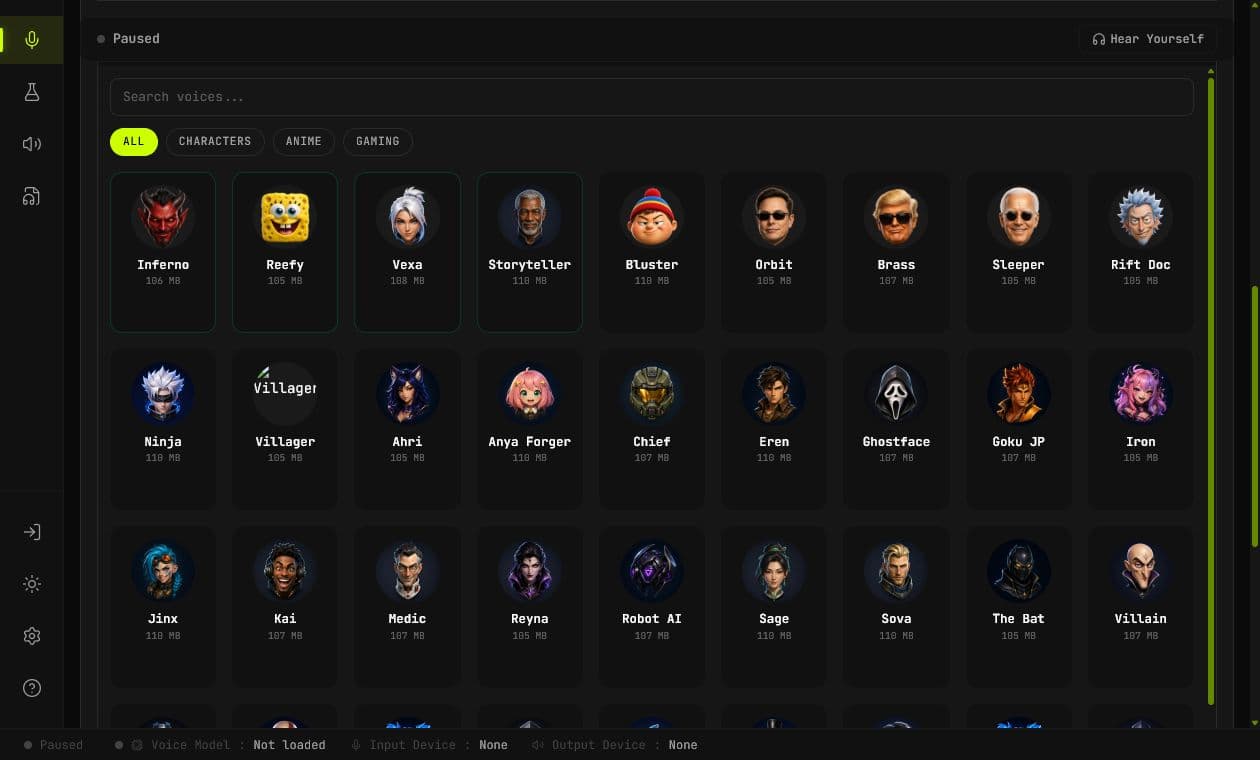
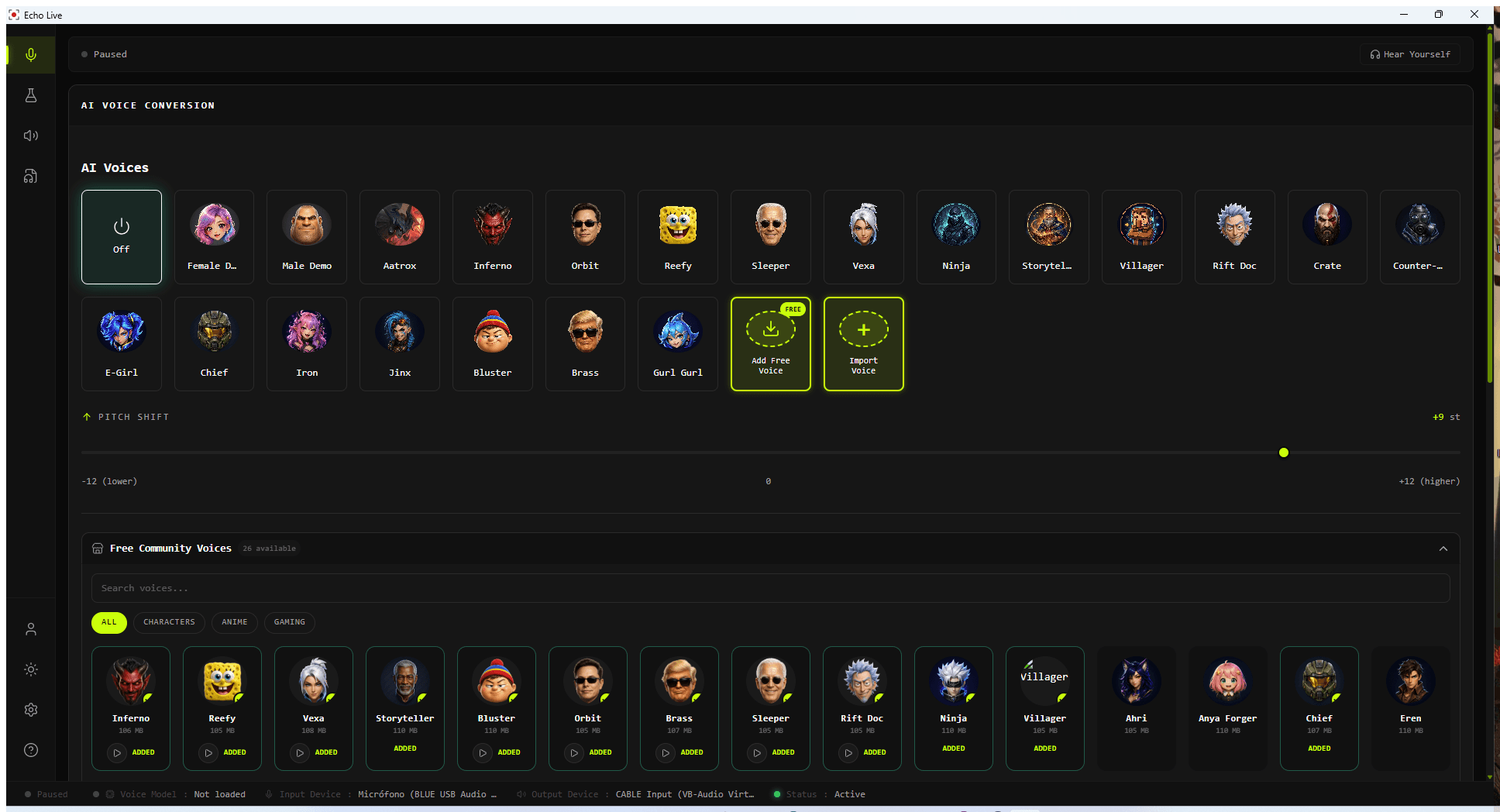
- Add or download the AI voice you want before opening the conversion step.
- Stop live voice conversion before recording or converting in Studio.
- Choose the physical microphone you want to record in Settings > Audio.
Add Input Audio

Upload File
Imports WAV, MP3, FLAC, or OGG audio and prepares a managed copy for Studio.
Record
Records from the selected microphone for up to five minutes. Press the same control again to stop.
Preview and Trim the Input

- 1
Play the input
Use the play button beside the waveform to confirm the source audio is correct.
- 2
Move the start handle
Drag the left trim point past silence or material you do not want converted.
- 3
Move the end handle
Drag the right trim point to set where conversion should stop.
- 4
Preview the selection
Play again and confirm the selected range before starting a longer conversion.
Choose the Voice and Output
- 1
Select an installed AI voice
Studio loads its own model session and shows when the selected voice is ready.
- 2
Set pitch
Start from the pitch saved for that voice, then adjust only if the source and target vocal ranges need it.
- 3
Choose WAV or MP3
Use WAV when you want an uncompressed editing source. Use MP3 for a smaller, convenient listening or sharing file.
Convert the Selected Audio
- 1
Click Convert
The button becomes available when input audio is loaded, the voice is ready, and live mode is stopped.
- 2
Watch progress
Keep Echo open while Studio processes the selected range. Longer files and slower backends take more time.
- 3
Review the result
Studio shows the output duration, sample rate, and format when conversion completes.
Play and Save the Result

- Use the output play control to listen inside Studio.
- Seek through the result to check more than the opening seconds.
- Click Save File and choose where to export the finished WAV or MP3.
- Keep the original source until you have confirmed the saved result.
Run More Than One Conversion
Studio creates an independent conversion session and releases its model and media state after each run. Repeated conversions should not become progressively crackly, wobbly, or distorted.
- 1
Confirm whether the same input also changed
Replay the source. If only later outputs degrade, keep the affected outputs and note the conversion number.
- 2
Try a short repeat with the same settings
Use the same voice, pitch, input range, and output format so the report has a controlled comparison.
- 3
Collect support details
Include Echo version, backend, voice name, input format and length, conversion count before failure, and the exact visible error.
If Playback or Conversion Fails
| Problem | What to Check |
|---|---|
| Input will not play | Confirm the import finished, then remove and re-import the source file. |
| Convert remains unavailable | Load an input, select a ready voice, and stop live mode. |
| Output will not play | Use Save File to confirm whether the generated result itself is valid, and keep the displayed playback error. |
| Voice load fails | Try a bundled demo voice and save the exact model or backend error. |
| Later conversions degrade | Repeat the same short controlled conversion and report the conversion count and backend. |