Browse all guides9 guides
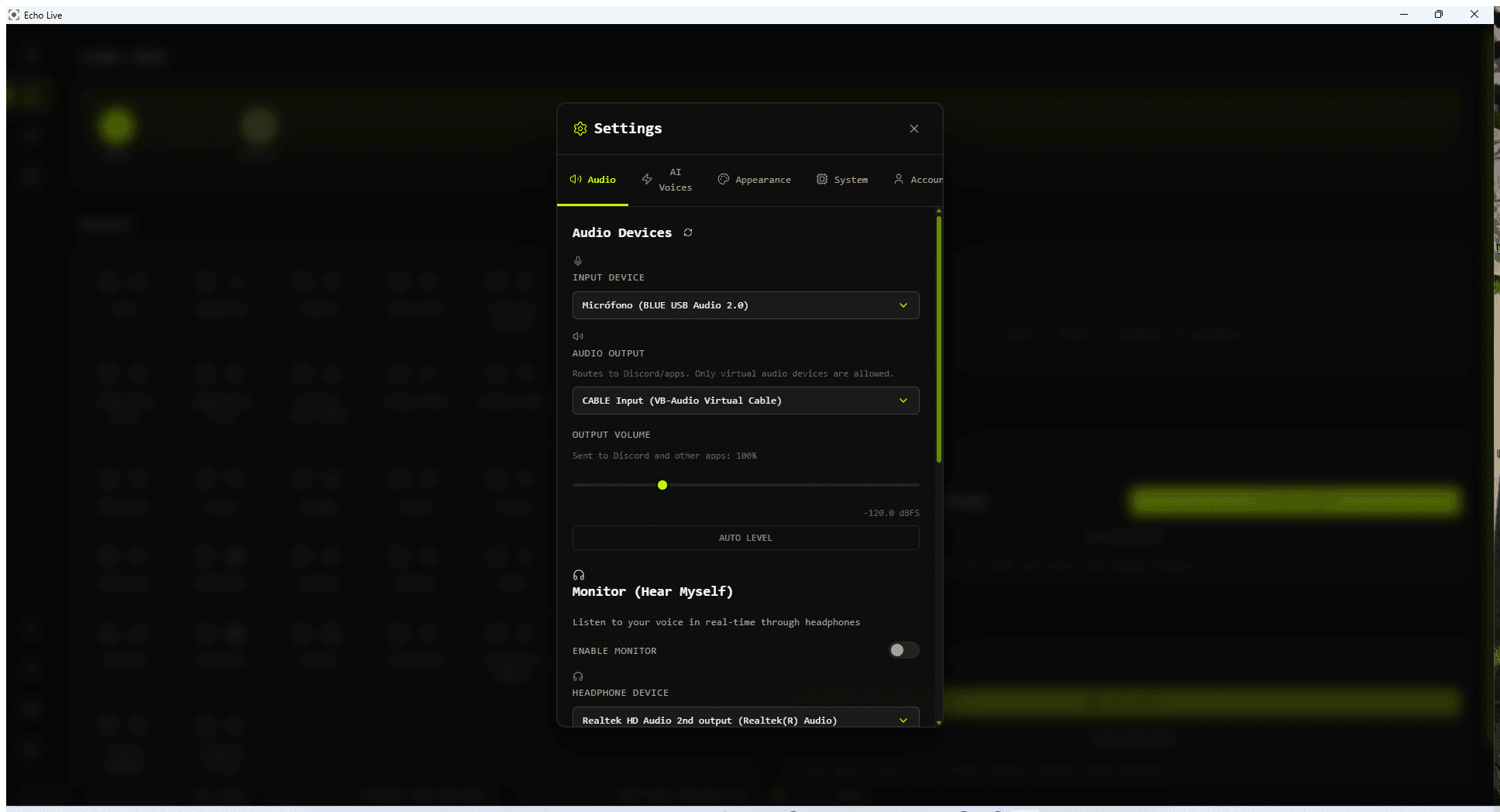
Audio Devices

Refresh Devices
Rescans microphones and outputs connected after Echo opened.
Recommended: Use this before restarting Echo when a new headset or microphone is missing.
Input Device
The physical microphone Echo processes.
Recommended: Choose your real microphone, not the virtual cable.
Audio Output
The virtual route Echo sends to Discord, games, OBS, and other apps.
Recommended: Use the automatically detected cable unless you have an advanced routing setup.
Output Volume
Output Volume changes the level sent to the virtual output. It does not change how loud you hear yourself through headphones.
- The available range is 0% to 400%.
- The live meter shows peak level and dBFS.
- A clipping warning means the output is too loud.
- Auto Level measures the loaded voice and chooses a safer starting point.
Monitor / Hear Yourself

Enable Monitor
Turns local headphone monitoring on or off.
Headphone Device
Chooses where your local monitor is played.
Recommended: Use headphones or speakers you actually listen to, not the virtual cable.
Monitor Volume
Changes only the local monitor, from 0% to 200%.
Noise Reduction

Neural Denoise
Turns microphone cleanup on or off.
Auto - best available
Lets Echo choose an available cleanup backend.
RNNoise
The normal general-purpose cleanup default.
Recommended: Start here unless your microphone has a repeatable problem with it.
WebRTC cleanup
An alternative cleanup path that can behave differently with room noise and quiet speech.
NVIDIA Maxine
A hardware-dependent option shown only when the required support is available.
Silence Threshold
Changes how quiet input must be before Echo treats it as silence.
Highpass Filter
Reduces low-frequency rumble such as desk vibration and handling noise.
Echo Cancellation
Helps when speaker output can re-enter the microphone.
Recommended: Headphones usually give cleaner and more predictable results.
Pitch Range
| Range | Best for |
|---|---|
| Standard (-12 to +12) | Normal voice conversion and the safest starting point |
| Extended (-25 to +25) | Stronger character changes |
| Extreme (-50 to +50) | Experiments that may sound less natural |
GPU and Acceleration
Model Backend
Shows the backend used by the currently loaded model, such as CPU, DirectML, CUDA, or CoreML.
GPU Readiness
Checks whether Echo can start GPU voice processing on the selected adapter.
Preferred Backend
Chooses GPU or CPU for the next model load.
Recommended: Reload the voice after changing this setting.
GPU Adapter
Chooses Auto or a specific detected GPU.
Recommended: Use Auto unless it selects the wrong device or support asks you to test one.
Available Capabilities
Shows inference features compiled into the current app build.
Optional NVIDIA Acceleration
Supported NVIDIA systems can install an optional CUDA package. It is separate from the main Echo installation, and regular GPU and CPU modes stay available as backup.
- The card can ask you to install, continue setup, load a test voice, or restart Echo.
- Installed and ready means setup is complete but CUDA may not be the active loaded backend yet.
- Active means the currently loaded model is using NVIDIA acceleration.
- Remove uninstalls the optional package, not Echo Live.
Performance Tuning
The main slider moves from Faster response to More stability.

| Position | What it prioritizes |
|---|---|
| Minimum delay | Lowest processing window and least safety margin |
| Very fast | Very fast response for strong hardware |
| Responsive | Faster response with moderate processing room |
| Balanced | A general mix of response and smoothness |
| Stable | More room for hardware under load |
| Smooth | Cleaner conversion on slower or busy systems |
| Maximum stability | The largest safety margin for CPU or constrained hardware |
Echo chooses a starting position from your backend and detected hardware. Speak naturally while Echo checks it. Move one step toward More stability if audio breaks or chunks arrive late.
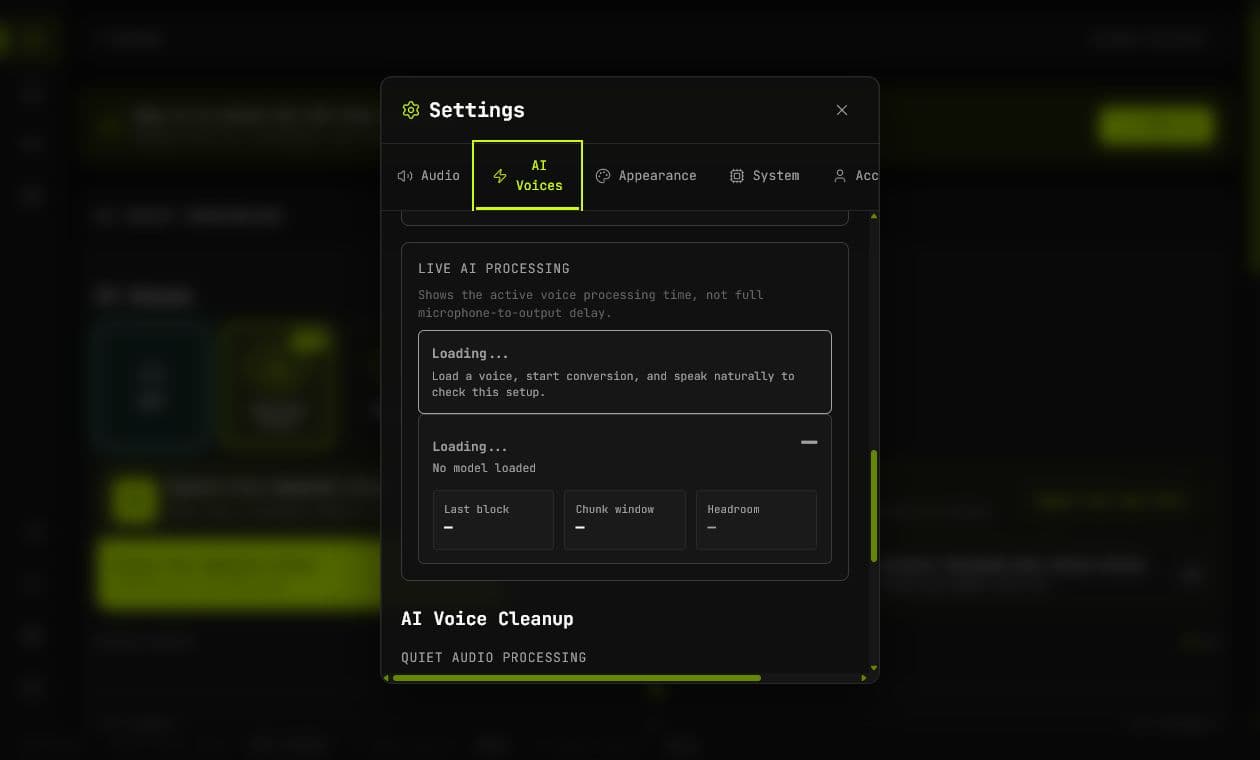
Live AI Processing
Processing time
The large value is the smoothed time Echo spends processing recent AI blocks.
Last block
The processing time for the latest completed block.
Chunk window
The time budget available for each converted block.
Headroom
Chunk window minus processing time. Small or negative headroom means the current mode may be too aggressive.
Late chunks
Blocks that did not finish inside their processing window.
Estimated Echo delay
Separate local estimates for Virtual output and Hear yourself when enough timing data exists.
AI Voice Cleanup

Volume-aware
Follows input level through speech, quiet audio, and silence.
Recommended: This is the normal default.
Gate-based
Makes an explicit decision about whether the current input is speech or silence.
Speech detection
Uses the microphone preprocessor's speech decision. Available only with Gate-based processing.
Energy threshold
Uses signal level for the gate decision. Available only with Gate-based processing.
End Cleanup
Offers Legacy / Off, Smooth fade, Smooth fade + reset, and Aggressive cleanup for Gate-based processing.
Advanced Tuning
Chunk Size
Controls the primary conversion window. Smaller values can reduce delay but leave less time for inference.
Extra Context
Provides surrounding audio history to help continuity.
Crossfade
Controls overlap between converted blocks. More overlap can smooth boundaries but soften transients.
Pitch Extractor
Selects bundled RMVPE or CREPE pitch tracking.
Recommended: Keep RMVPE unless you are comparing a repeatable pitch-tracking problem.
Specialized Presets
Expose extreme minimum-delay, CPU-safe, and maximum-quality combinations.
Language and Appearance

Display Language
Changes the app interface language. Some newer specialized areas may still contain English while translations catch up.
Theme
Changes the app look without affecting audio or performance.
System Information and Support

System Information
Shows CPU, RAM, GPU, driver, operating system, disk, free space, and compatibility warnings.
Copy for Support
Copies the hardware and selected-backend summary for a technical report.
Account, License, and About

Sign In with Browser
Starts Echo's browser authentication flow.
Check License
Refreshes account entitlement after a purchase or account change.
Restart Onboarding
Replays first-run setup without reinstalling Echo.
Disable Analytics
Opts out of optional product analytics.