Browse all guides9 guides
Voice Conversion
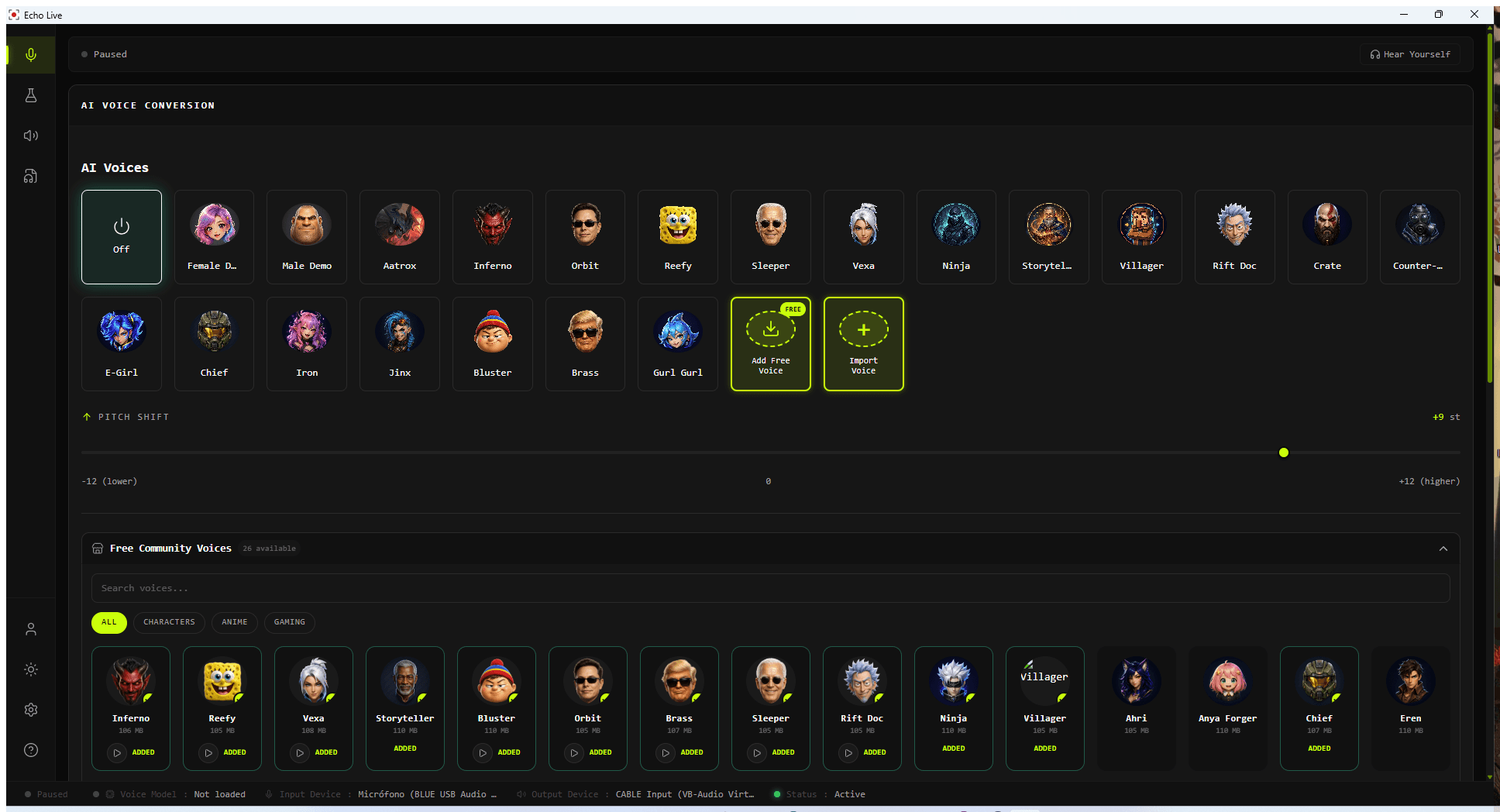
Use Voice Conversion when you want to change your voice live.

Paused / Effects Active
Shows whether live processing is currently running.
Hear Yourself
Monitors Echo through your selected headphones.
Stop
Stops active live processing.
AI Voices
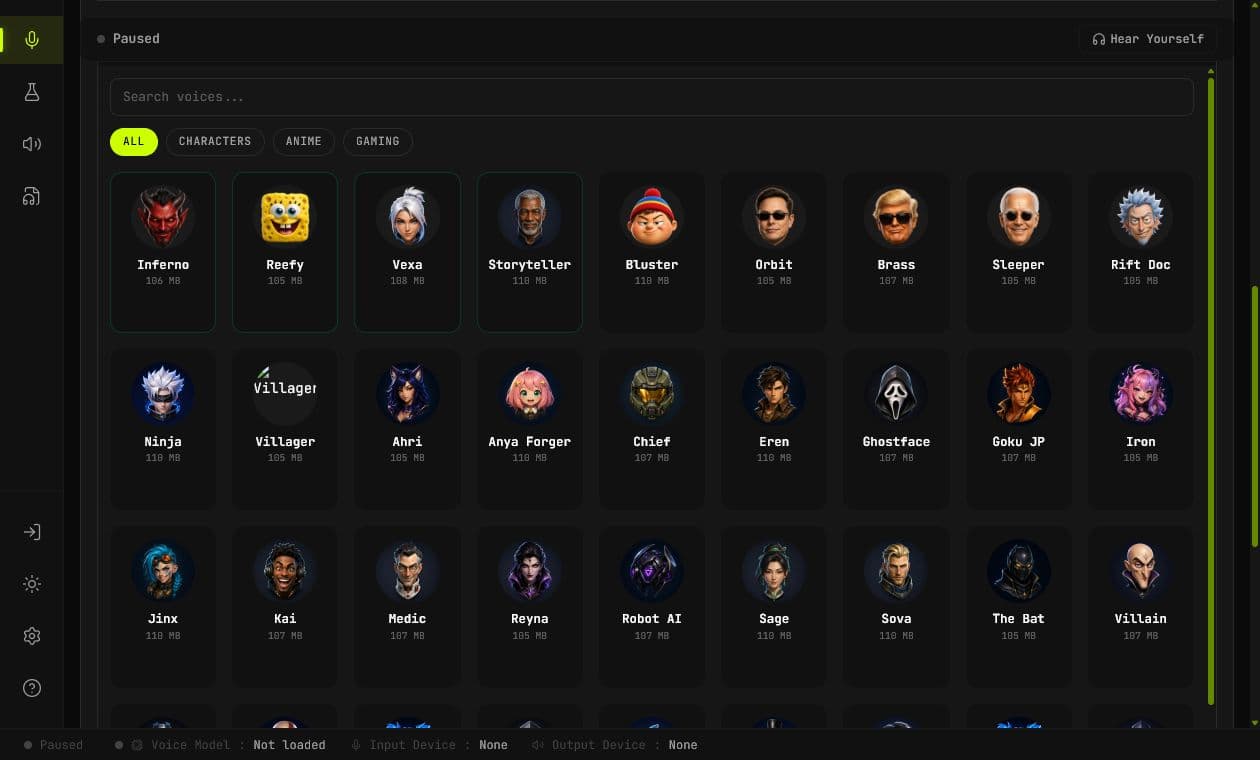
Choose demos, downloaded community voices, custom voices, pitch, and performance tuning.
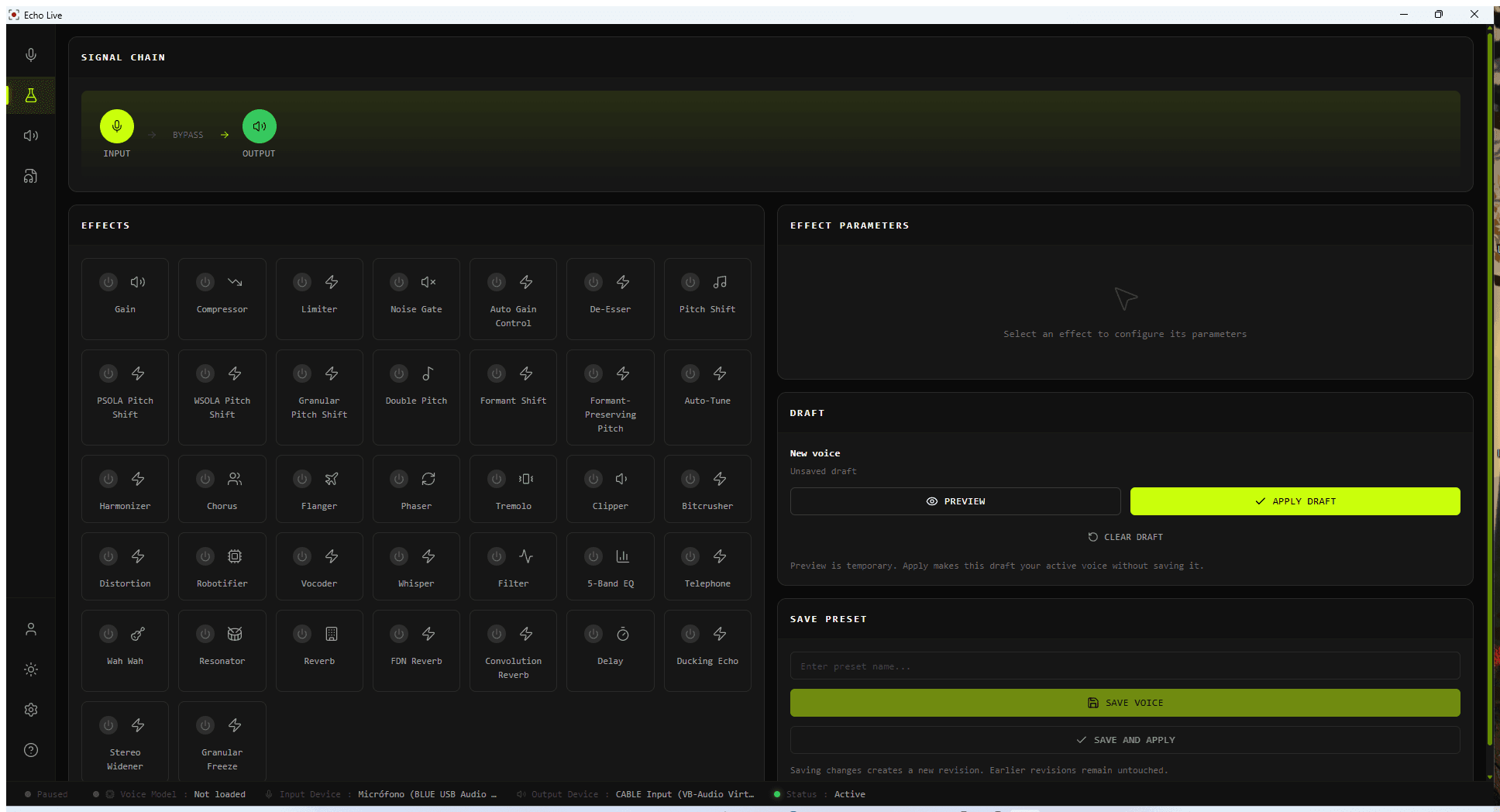
DSP Voice Effects
Choose fast ready-made effects that do not load an AI voice model.
DSP Voice Effects
Use ready-made effects when you want a fast transformation without loading an AI model.
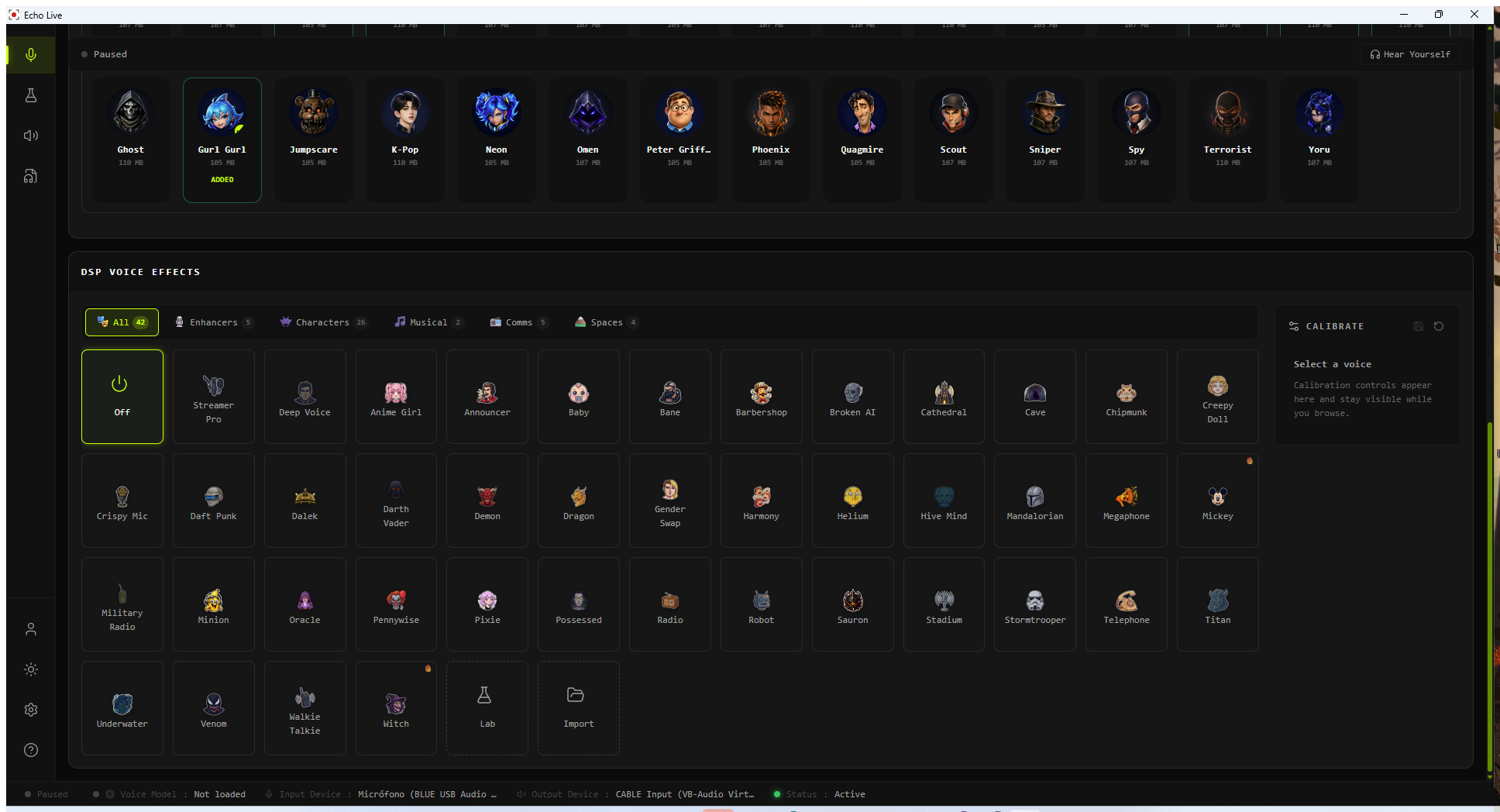
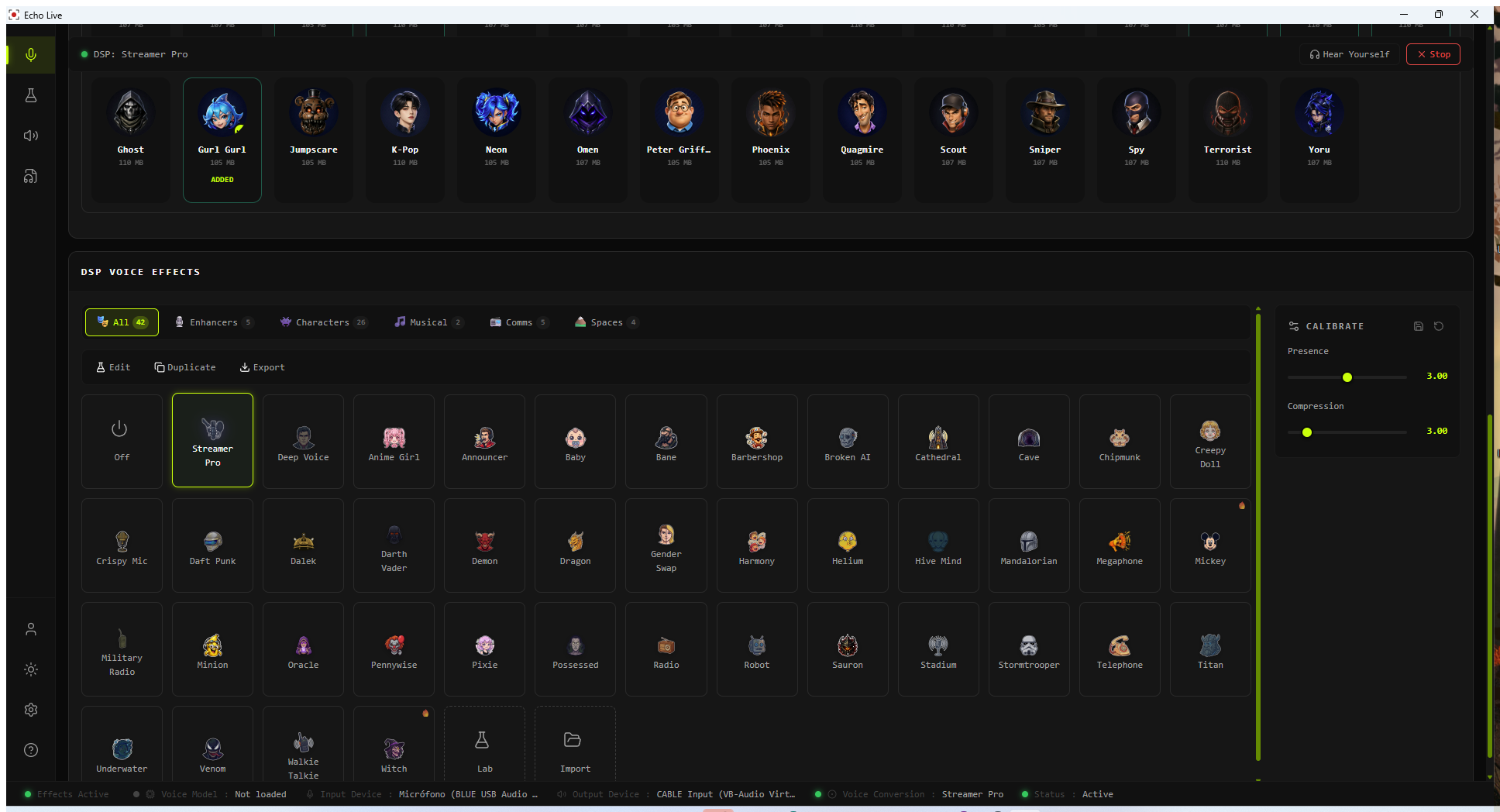
- Choose Off to return to your unprocessed microphone.
- Use categories to narrow the library before selecting a voice.
- Adjust only the calibration controls exposed by the selected voice.
- Open Lab when you want to build or edit a full effect chain.
Voice Lab
Build your own effect chain from Input through enabled effects to Output.
Signal Chain
Shows the active processing order.
Effects
Enables, disables, and selects effect modules.
Preview
Auditions the current draft temporarily.
Apply draft
Makes the draft active without saving it.
Save as new
Keeps the source and creates a separate voice.
Save and apply
Saves the voice and makes it active.
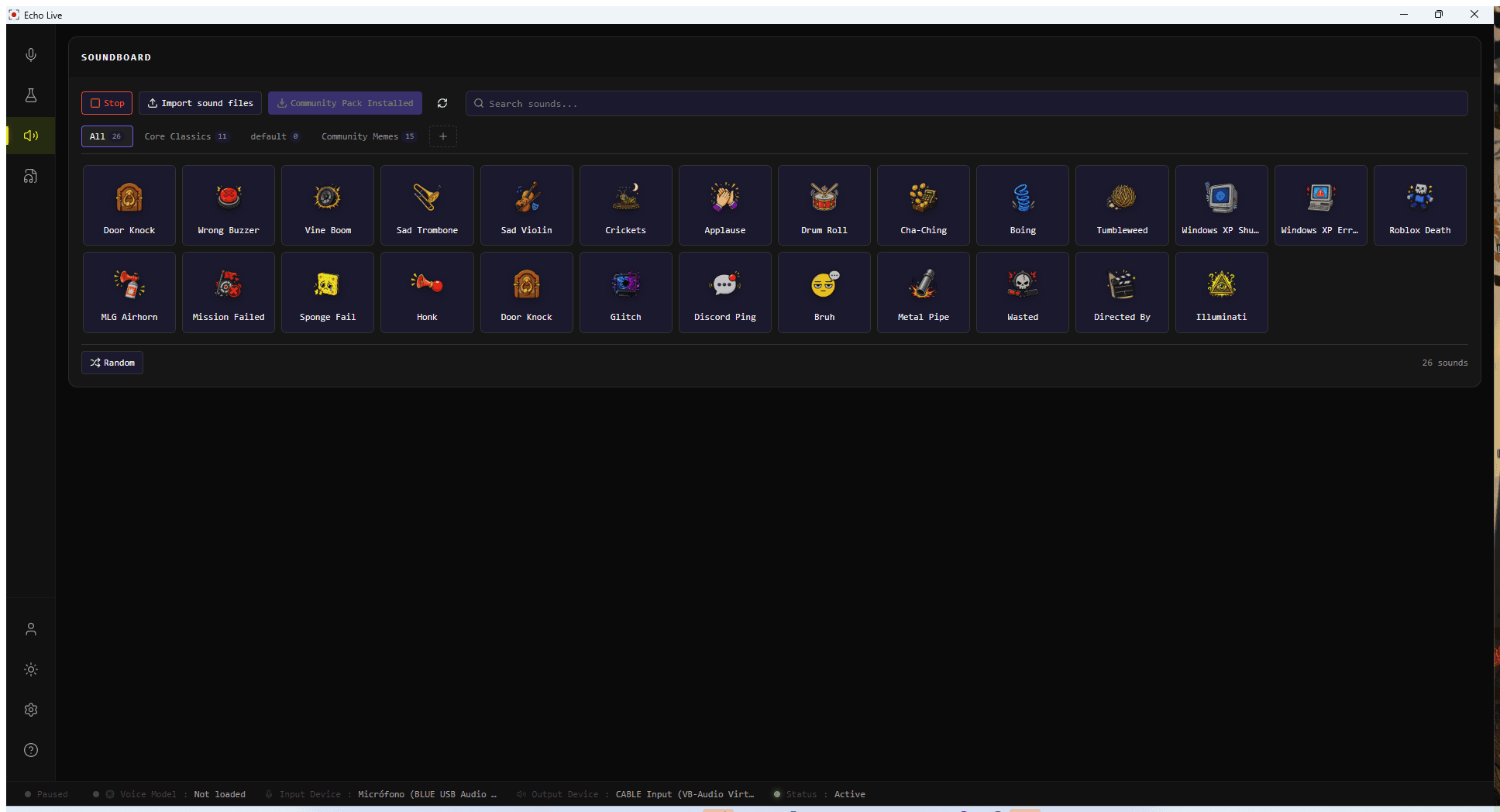
Soundboard
- Import your own sounds or download the included community meme pack.
- Organize sounds into boards and search by name or tags.
- Rename, move, and assign keyboard hotkeys to sounds.
- Stop every playing sound at once when you need silence immediately.
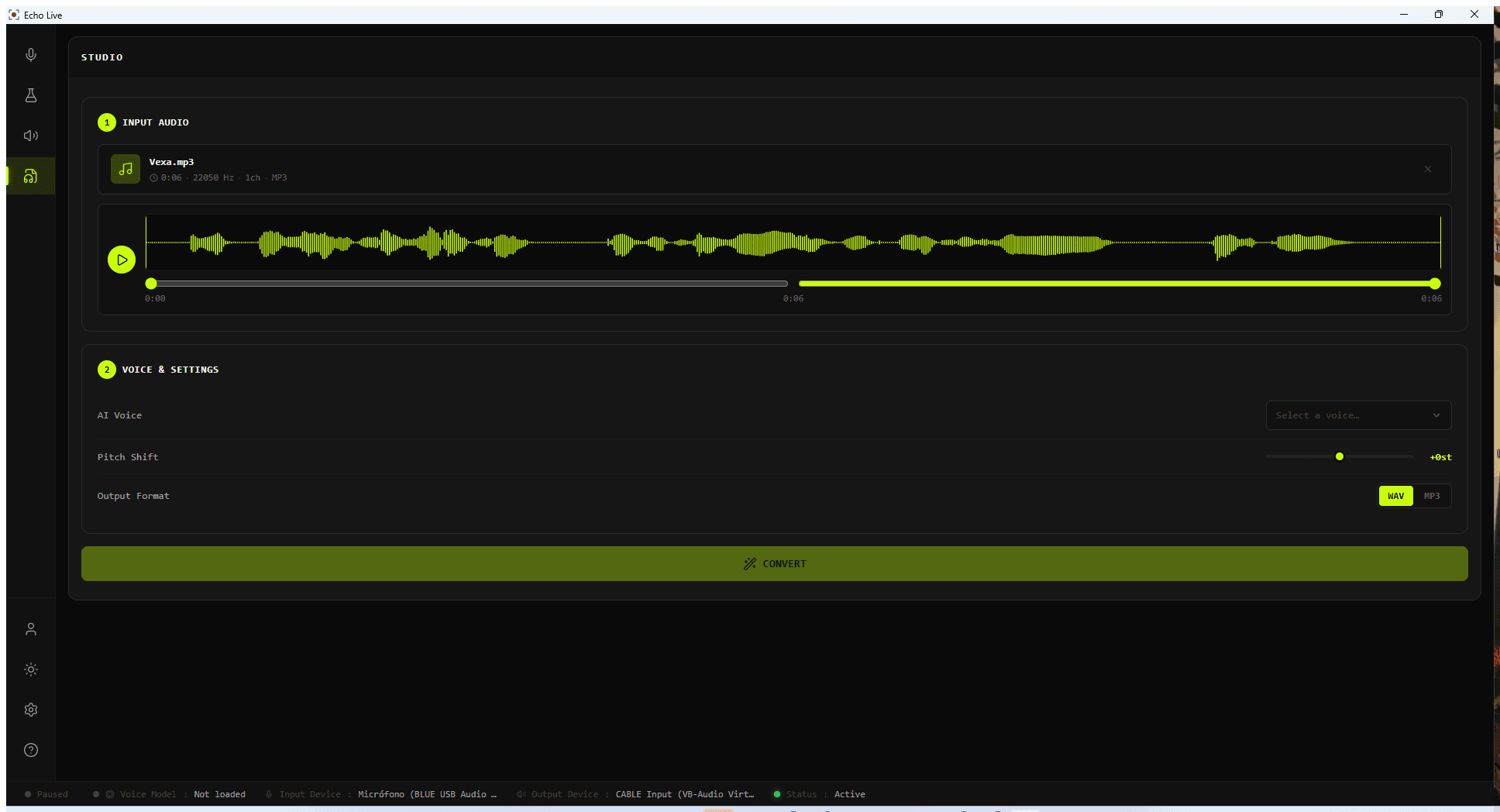
Studio
Use Studio for file-based AI voice conversion with Pro.
- 1
Add audio
Upload WAV, MP3, FLAC, or OGG, or record up to five minutes.
- 2
Trim it
Preview the waveform and choose the exact section to convert.
- 3
Choose a voice
Select an installed AI voice, pitch, and WAV or MP3 output.
- 4
Convert and save
Play, seek through, and save the result.
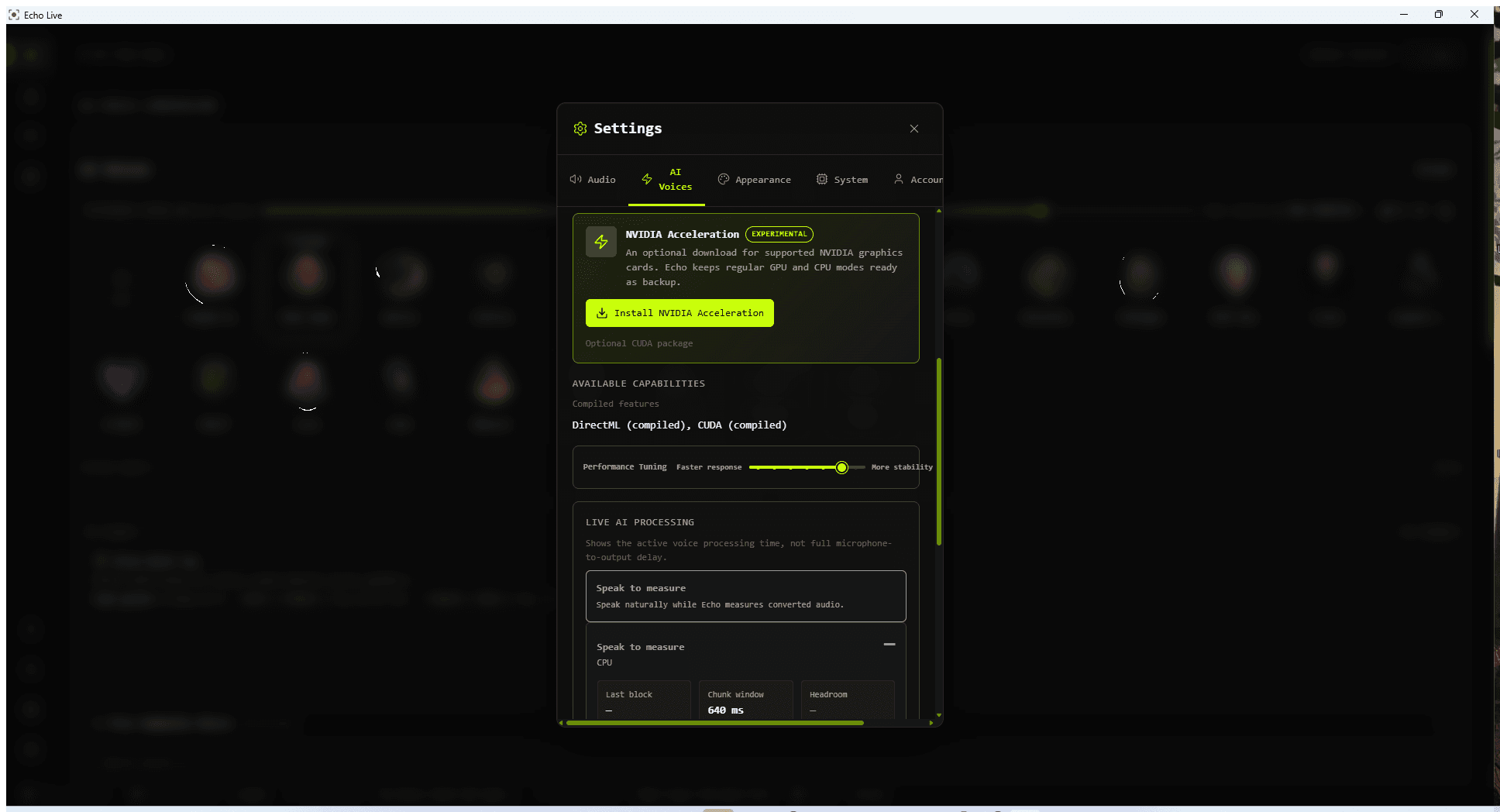
Settings
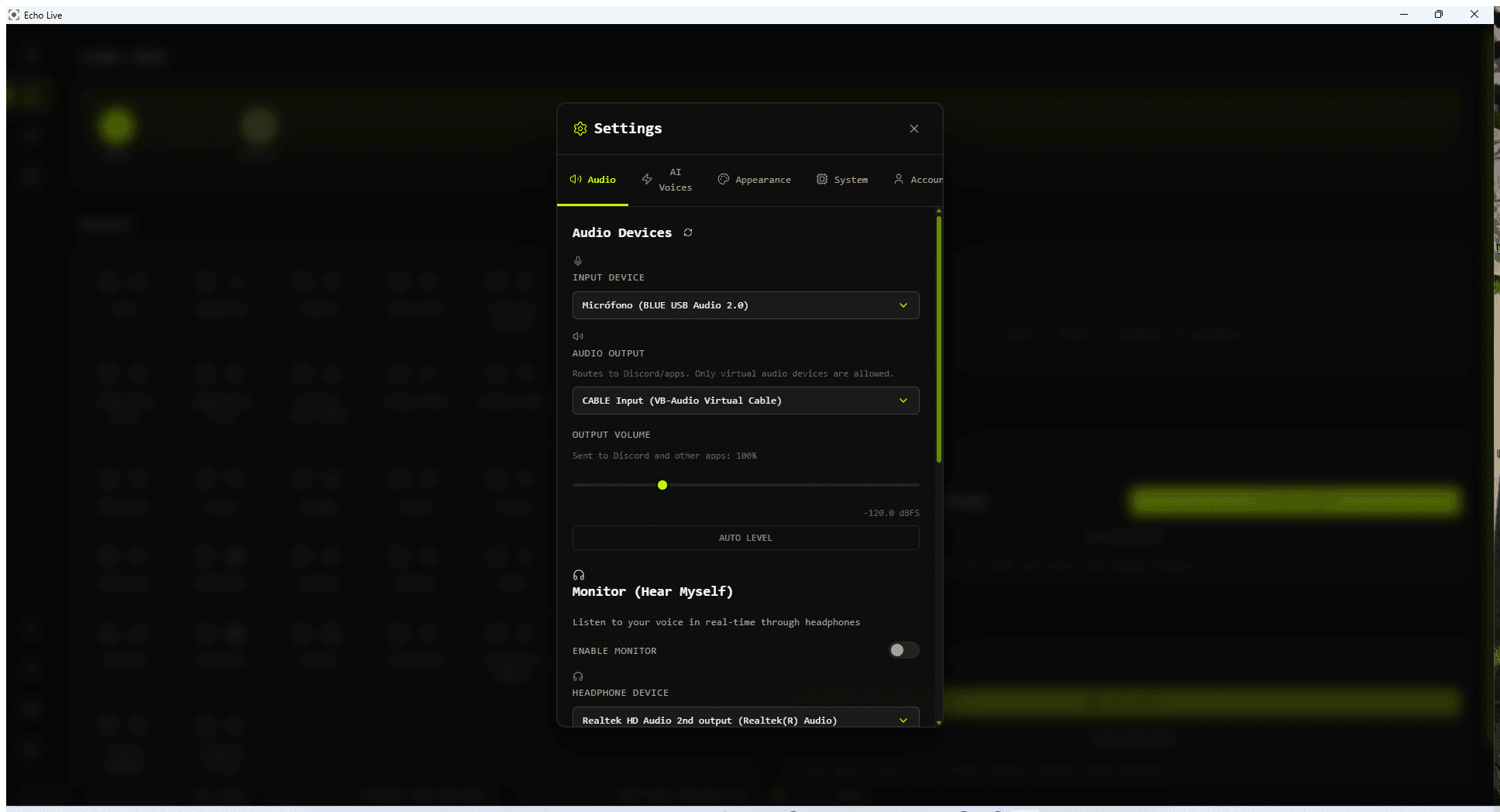
Audio
Microphone, virtual output, monitoring, volume, and microphone cleanup.
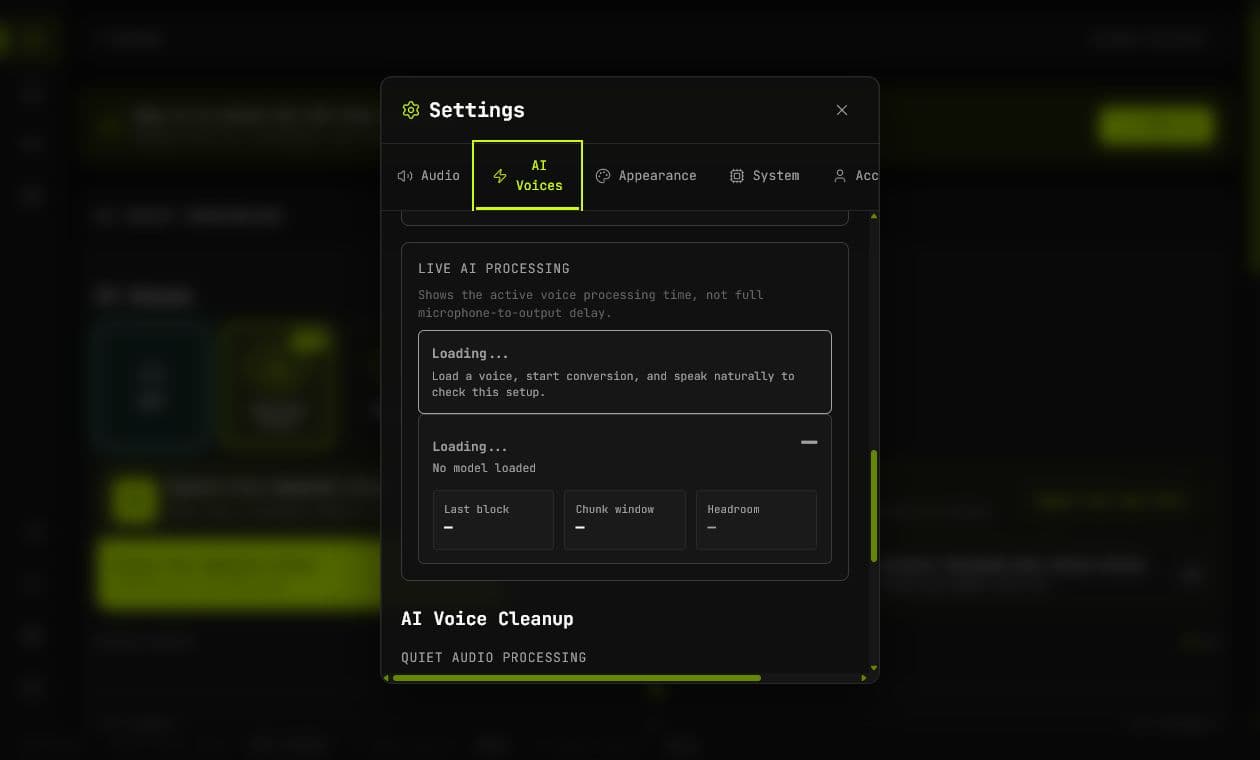
AI Voices
Backend, GPU, response tuning, live health, pitch range, and AI cleanup.
Appearance
Display language and visual theme.
System
Hardware, operating system, disk space, warnings, and Copy for Support.
Account
Browser sign-in, license refresh, and sign out.
About
Version, product links, onboarding restart, and analytics preference.
Status Bar and Help
The bottom status bar shows pause state, active voice, input device, output route, and overall readiness. Check it before changing advanced settings.