Browse all guides9 guides
What the Slider Changes
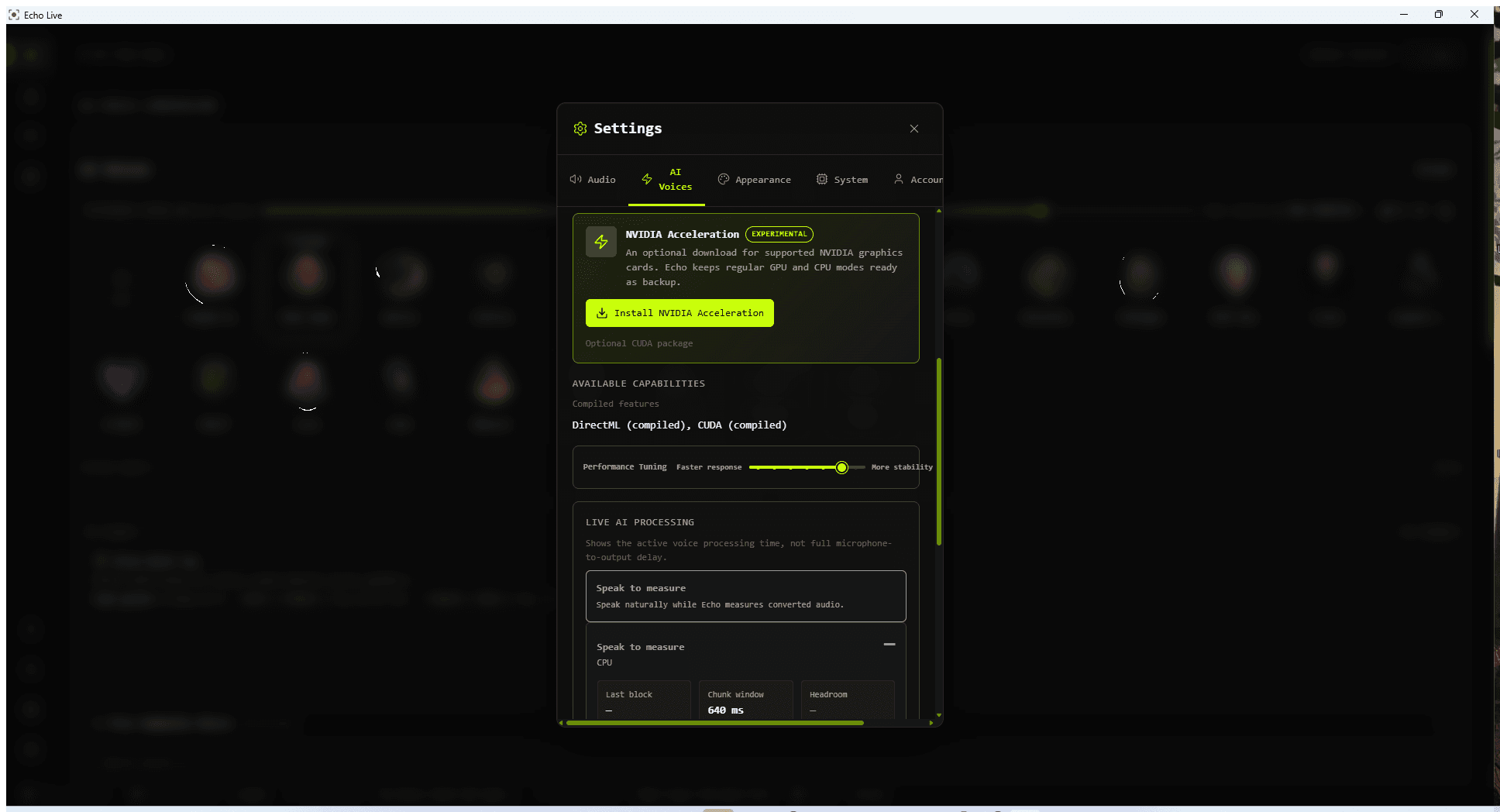
Performance Tuning is a seven-step spectrum. Moving toward Faster response gives each block less time and context. Moving toward More stability gives conversion more room to finish and usually produces cleaner speech on constrained hardware.
| Step | Visible Name | Best Starting Use |
|---|---|---|
| 1 | Minimum delay | Strong hardware with the least processing room. |
| 2 | Very fast | Very quick response when the live panel still shows comfortable headroom. |
| 3 | Responsive | Faster live use on capable hardware. |
| 4 | Balanced | General starting point for strong discrete GPUs. |
| 5 | Stable | More room when the system is under load. |
| 6 | Smooth | Cleaner conversion on slower or busy systems. |
| 7 | Maximum stability | The most processing room for CPU or constrained systems. |
Measure the Current Setup
- 1
Load the voice you plan to use
Different voice models can have different processing costs. Wait for warmup to finish.
- 2
Open Settings > AI Voices
Find Live AI Processing and keep it visible while you speak.
- 3
Speak naturally for several sentences
Echo needs converted chunks to judge the setup. Include pauses, quiet endings, and normal changes in volume.
- 4
Read the health result
Use Processing is keeping up, Limited processing stability, or Processing cannot keep up as the primary decision signal.
Read the Live Processing Panel

Smoothed processing time
The large timing value summarizes recent active voice-processing time so one unusual block does not dominate the display.
Last block
How long the most recent converted block took to process.
Chunk window
The time budget available for that conversion block.
Headroom
The remaining processing room: chunk window minus processing time.
Late chunks
Converted blocks that missed their processing window. Repeated misses can become breaks, grain, or unstable audio.
Processing-window use
How much of the available block time conversion is consuming.
Tune One Step at a Time
- 1
Fix instability first
If Echo reports limited stability, cannot keep up, or repeatedly shows late chunks, move one step toward More stability.
- 2
Retest the same voice and workload
Speak for several sentences again. Do not change the voice, backend, game, and slider together.
- 3
Try faster only with room
If processing keeps up, late chunks stay at zero, and audio sounds clean, move one step toward Faster response and compare again.
- 4
Keep the fastest clean step
The best setting is not the leftmost setting. It is the fastest point that stays clean during your real workload.
Understand the Delay Estimate
When enough timing data exists, Echo estimates its own delay separately for Virtual output and Hear yourself. This is broader than model processing time because capture, buffering, conversion, and the local route also take time.
- The chunk window is part of the delay budget, even when model processing finishes much faster.
- Extra context and crossfade help continuity but also affect the live buffering path.
- Virtual output and Hear Yourself can have different route timing.
- Discord processing, game voice chat, network delay, Bluetooth, and the listener's device are outside Echo's estimate.
Compare CPU and GPU Fairly
- Changing Preferred Backend or GPU Adapter requires the voice model to reload before the new choice applies.
- CPU, DirectML, and optional CUDA can need different slider positions on the same computer.
- Use the same voice, pitch, cleanup mode, microphone, and workload when comparing backends.
- A backend that processes a block quickly but fails to stay stable under load is not the better result.
Use Advanced Controls Only When Needed
The seven guided steps change Chunk Size, Extra Context, and Crossfade together as tested combinations. Advanced Tuning exposes those values separately, but changing one can alter delay, continuity, and processing headroom in ways the simple slider no longer represents.