Browse all guides9 guides
Choose the Right Kind of Voice
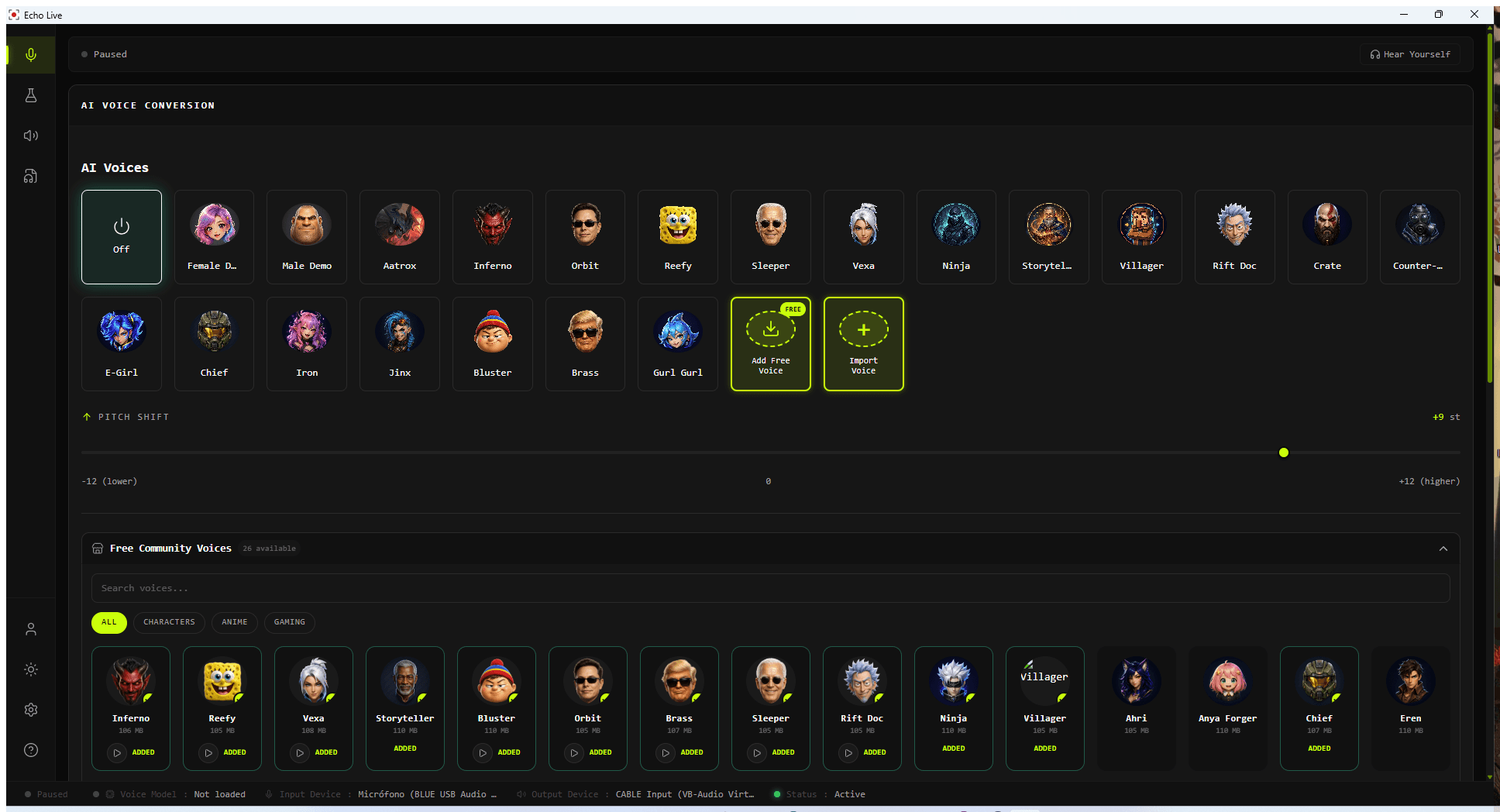
Demo voices
Ready-made voices for checking that conversion works. They do not use a community voice slot.
Recommended: Start here when setting up Echo for the first time.
Free community voices
Voices from Echo's growing included library. Free users can keep up to four saved at once.
Recommended: Try several voices before deciding which ones fit your voice best.
Custom imports
Models you created or found elsewhere. Importing your own voice files requires Pro.
Recommended: Use only models you have permission to use.
Load and Test a Voice
- 1
Select a voice card
Choose a demo or downloaded voice from the AI Voices grid.
- 2
Wait for warmup
Let the Warming up voice stage finish before speaking. This prepares the model so the first sentence is not used as its startup pass.
- 3
Speak a normal sentence
Use your usual microphone level and speaking distance. A whisper or a clipped microphone is not a fair voice test.
- 4
Adjust one thing at a time
Start with pitch, then move Performance Tuning only if the audio cannot keep up or needs more stability.
Add Free Community Voices

- 1
Open the library
Click Add Free Voice or Browse Free Community Voices.
- 2
Search or filter
Use the library search and categories to find a voice you want to test.
- 3
Download the voice
Echo adds the voice to your main grid when the download finishes.
- 4
Manage free slots
Free users can keep four community voices. Remove one you no longer want to make room for another, or upgrade for unlimited slots.
Import Your Own Voice with Pro
Open Import Voice, name the voice, choose its model file, and optionally add an avatar. Echo stores the imported voice in your local library.
| File | How Echo Uses It |
|---|---|
| .onnx | Imported directly as a voice model. |
| .pth | Converted to ONNX inside Echo before it is added. |
| .index | Accepted as an optional companion file. |
| PNG, JPG, JPEG, WebP, GIF | Used as the voice avatar after square cropping. |
Set Pitch Without Guessing
- Start at 0 for a voice with a similar vocal range to yours.
- Try a positive shift when moving from a lower voice toward a higher voice.
- Try a negative shift when moving from a higher voice toward a lower voice.
- Change pitch in small steps and compare full sentences, not single sounds.
- Use the wider pitch setting only for extreme character effects; large shifts can sound less natural.
Balance Response and Stability
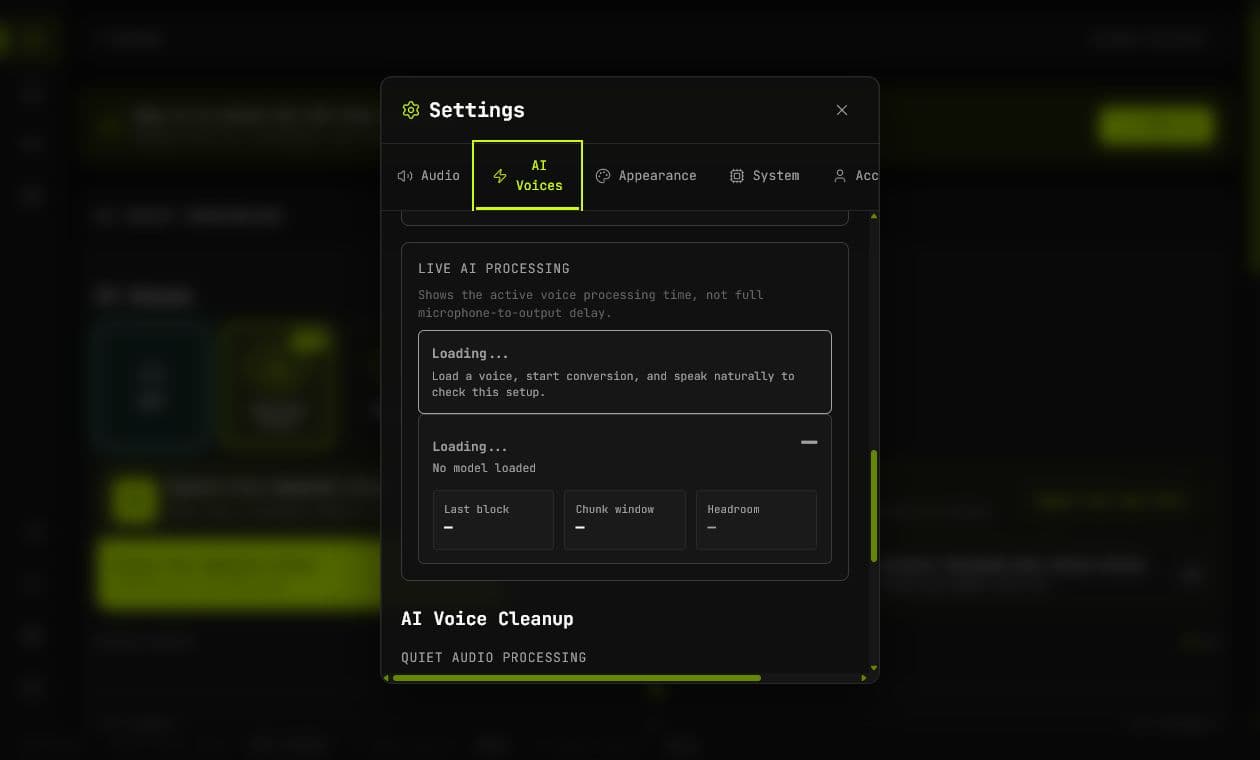
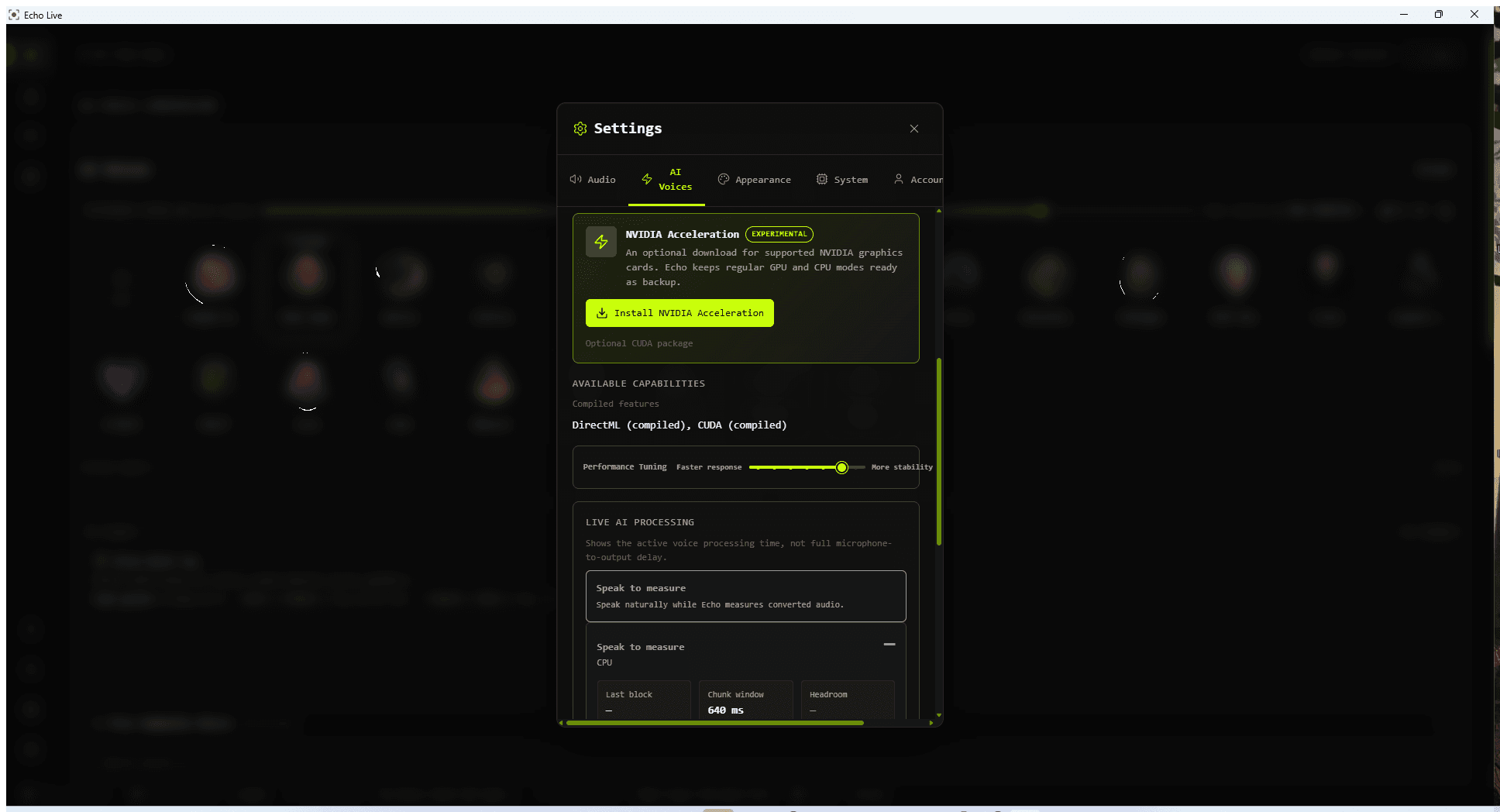
Performance Tuning is a seven-step spectrum from Faster response to More stability. Echo chooses an initial position from your hardware, but the live processing result is the better guide.
- Move toward More stability if speech breaks up, sounds grainy, or misses processing windows.
- Move toward Faster response only when processing has comfortable headroom and the voice remains clean.
- Judge changes after several natural sentences. Very short tests can hide intermittent misses.
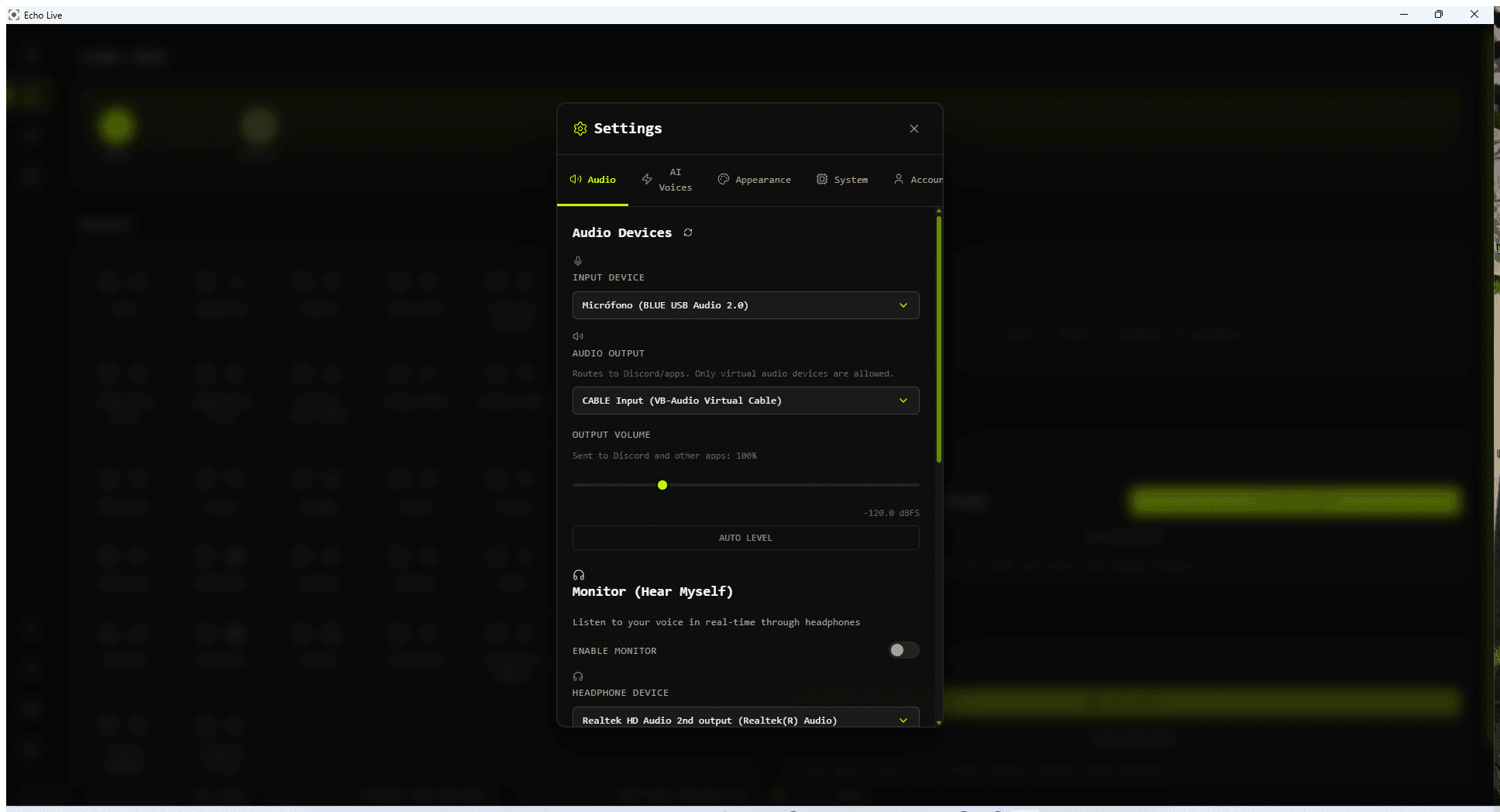
- Open Settings > AI Voices for the detailed Live AI Processing panel.
If a Voice Does Not Work
- 1
Read the visible load message
A download, warmup, model-layout, or graphics-backend failure needs a different fix. Keep the exact wording.
- 2
Try a bundled demo voice
If a demo works, the problem is likely specific to the downloaded or imported model rather than your whole audio setup.
- 3
Check live processing
If every voice breaks up, move Performance Tuning toward More stability and check whether blocks are missing their processing window.
- 4
Collect support details
Open Settings > System, click Copy for Support, and include the voice name, Echo version, selected backend, and exact error.