Browse all guides9 guides
Understand the Three Audio Routes
| Route | What It Should Be |
|---|---|
| Input Device | The physical microphone you speak into. |
| Audio Output | A virtual audio device that carries Echo into Discord, games, OBS, or another app. |
| Headphone Device | The headphones or speakers used only for Hear Yourself. |
Select Your Devices in Echo

- 1
Open Settings > Audio
Keep the device names visible while you set up the rest of the route.
- 2
Choose Input Device
Select your real USB, headset, laptop, or audio-interface microphone. Do not select the virtual cable as your input.
- 3
Choose Audio Output
Select the supported virtual device that should carry Echo to other apps. Echo blocks ordinary hardware outputs here to reduce accidental feedback and loud loops.
- 4
Choose Headphone Device
Select the headphones or speakers you actually listen to, then enable Monitor only when you want to hear yourself.
What the Virtual Cable Does
A virtual cable links Echo to apps that expect a microphone. Echo does not replace your physical microphone driver, and Hear Yourself alone does not send converted audio into Discord.
Windows
Echo currently recognizes supported virtual devices such as VB-Cable and compatible alternatives. A newly installed audio driver may require a Windows restart before its endpoints appear.
macOS
Echo can use a supported virtual device such as BlackHole for app routing. Local monitoring can still work without a cable, but Discord or OBS needs a route it can select as an input.
Route Echo into Discord or a Game
- 1
Confirm Echo works first
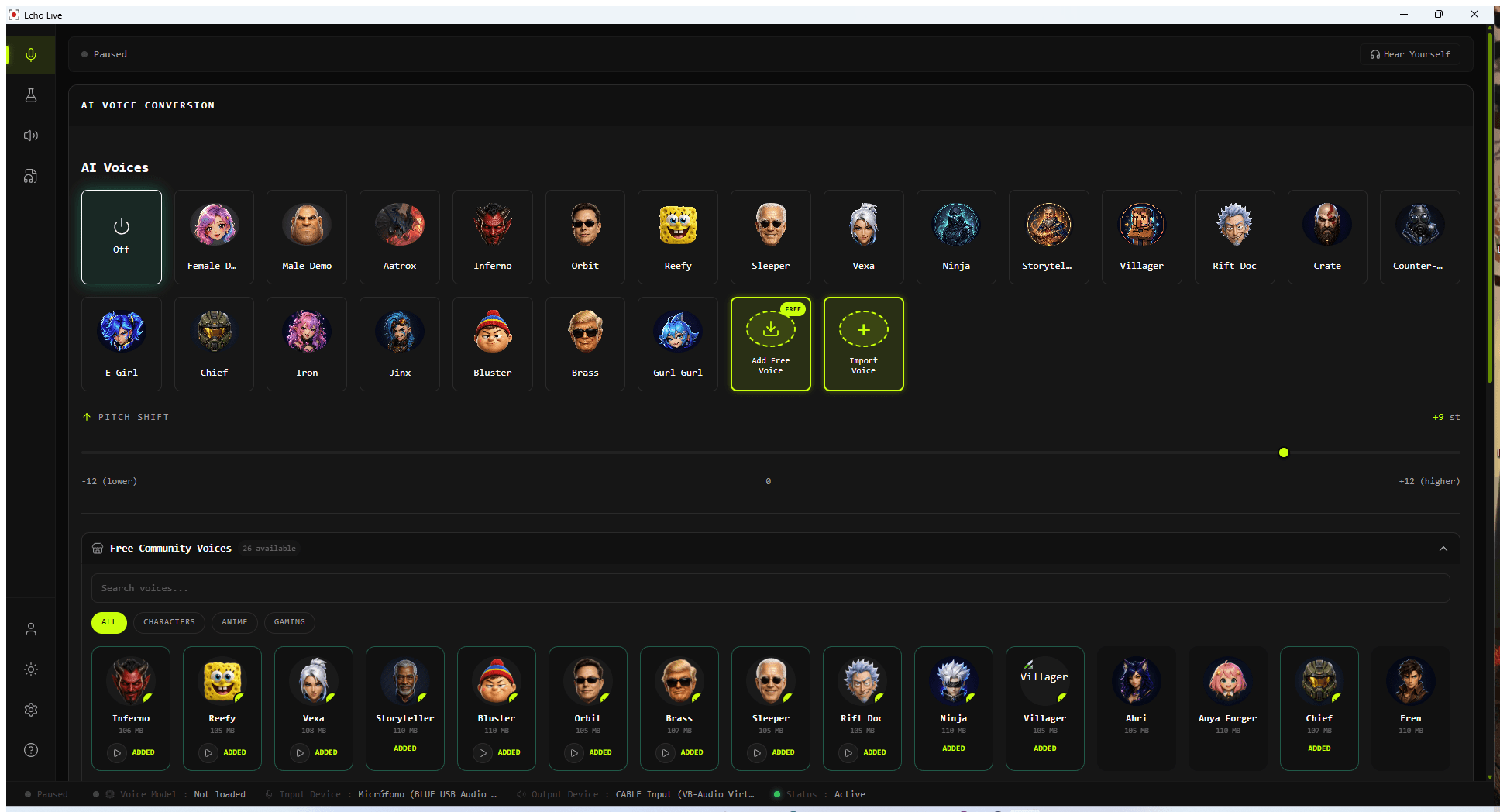
Load a voice and use Hear Yourself with headphones. This confirms the microphone and conversion path before you add Discord.
- 2
Check Echo's Audio Output
Note the selected virtual device in Settings > Audio.
- 3
Open the receiving app
In Discord, your game, or OBS, choose the matching virtual cable recording endpoint as the microphone or input source.
- 4
Run the receiving app's microphone test
Speak normally and confirm it receives the converted voice rather than your physical microphone.
Use Hear Yourself Without Changing Output
- Enable Monitor to hear a local copy through Headphone Device.
- Use Monitor Volume to change only what you hear.
- Use Output Volume to change what Discord, games, and OBS receive.
- Use headphones whenever possible so the monitored voice does not re-enter the microphone.
- Bluetooth headphones can add noticeable listening delay even when Echo processing is keeping up.
Set a Safe Output Level
- 1
Speak at your normal level
Watch the Output Volume meter while using the voice you plan to keep.
- 2
Use Auto Level as a starting point
Let Echo measure active speech and choose a safer initial output level.
- 3
Check the receiving app
Confirm Discord, OBS, or the game is not adding excessive automatic gain after Echo.
Find the Broken Part of the Route
| What You Observe | Most Likely Place to Check |
|---|---|
| Echo shows no microphone activity | Microphone permission, Input Device, connection, or exclusive access. |
| Hear Yourself works, but Discord hears nothing | Echo Audio Output and Discord input endpoint do not match. |
| Discord hears the normal voice | Discord is using the physical microphone instead of the virtual cable. |
| Discord works, but Hear Yourself is silent | Enable Monitor, Headphone Device, or Monitor Volume. |
| Everyone hears echo or a loud loop | A speaker or virtual cable is feeding back into the microphone or monitor route. Stop processing and rebuild the route with headphones. |
| A newly connected device is missing | Refresh Devices, then reconnect or restart Echo if the driver appeared after launch. |