Browse all guides9 guides
Choose Your Microphone
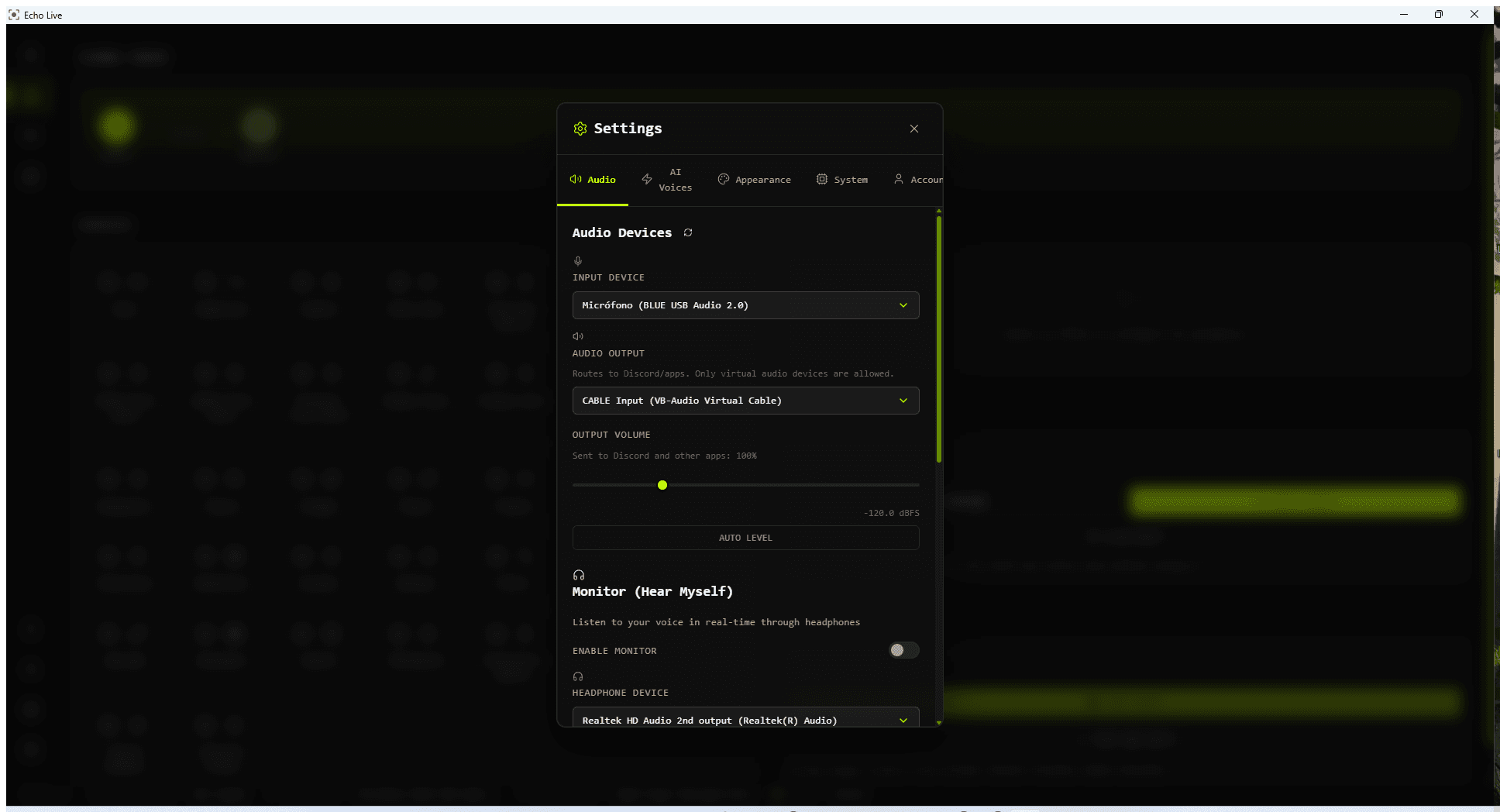
Open Settings, choose Audio, and select the physical microphone you want Echo to process under Input Device.

Hear Your Voice Safely
Use headphones so your microphone does not pick up Echo again.
- 1
Enable monitoring
In Settings > Audio, turn on Enable Monitor.
- 2
Choose your headphones
Select the device you actually listen to under Headphone Device.
- 3
Set a comfortable level
Adjust Monitor Volume, or use the Hear Yourself shortcut on the main screen.
Try a Demo Voice
- 1
Open Voice Conversion
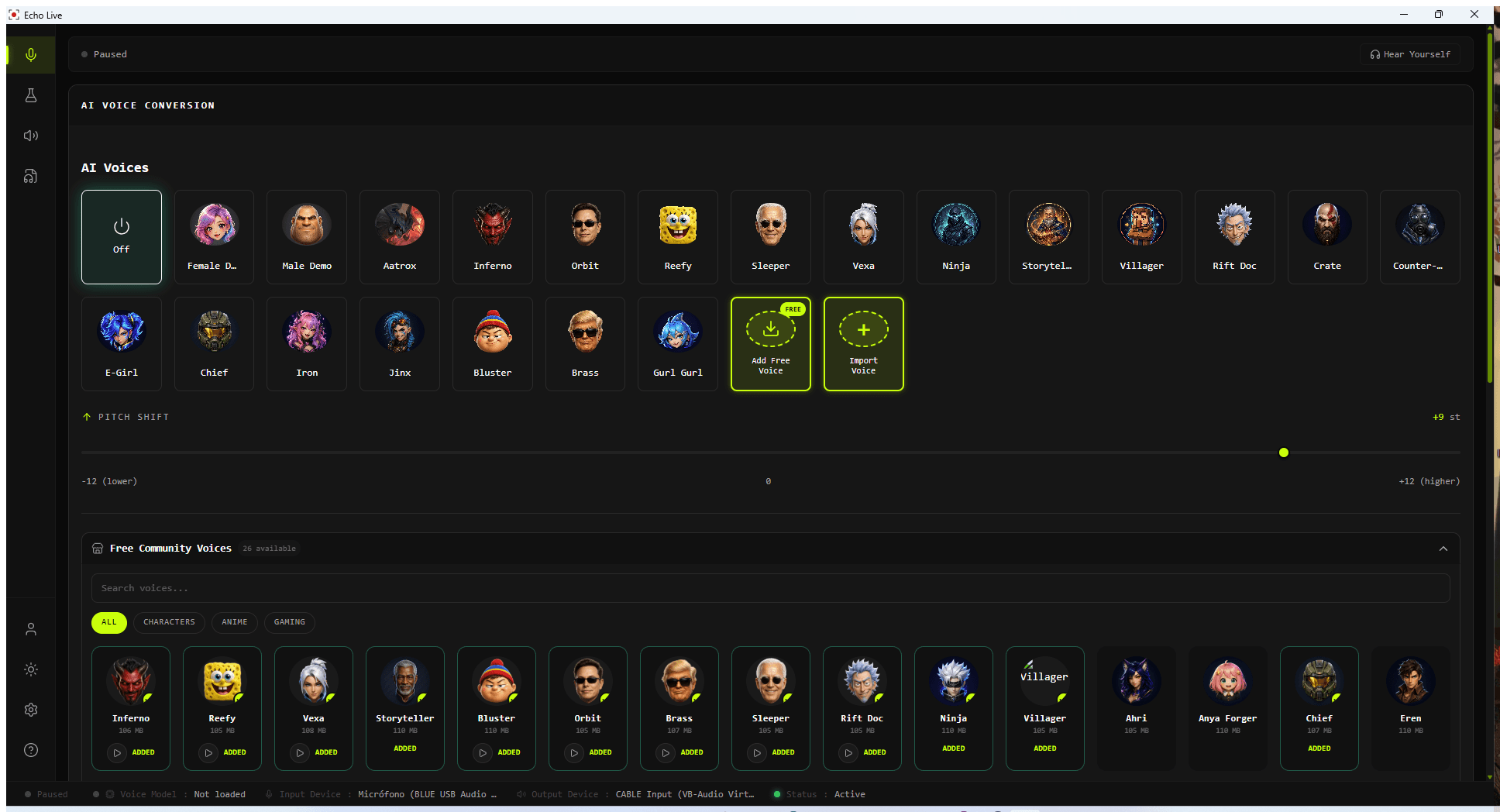
Select Female Demo or Male Demo from the AI voice row.
- 2
Wait for warmup
Echo shows Warming up voice while it prepares the model. Wait until the voice is ready before judging it.
- 3
Speak naturally
Use a few full sentences instead of short clicks or isolated sounds.

- Check that the voice card is marked active.
- Make sure live processing is not paused.
- Disable direct microphone monitoring in Windows, macOS, your headset, or your audio interface if you still hear your normal voice.
Set Pitch Only When You Need It
- Start near 0 when your voice and the target voice have a similar range.
- Try a positive shift when moving from a lower voice to a higher voice.
- Try a negative shift when moving from a higher voice to a lower voice.
- Move in small steps and stop when speech sounds natural.
Find the Right Performance Setting
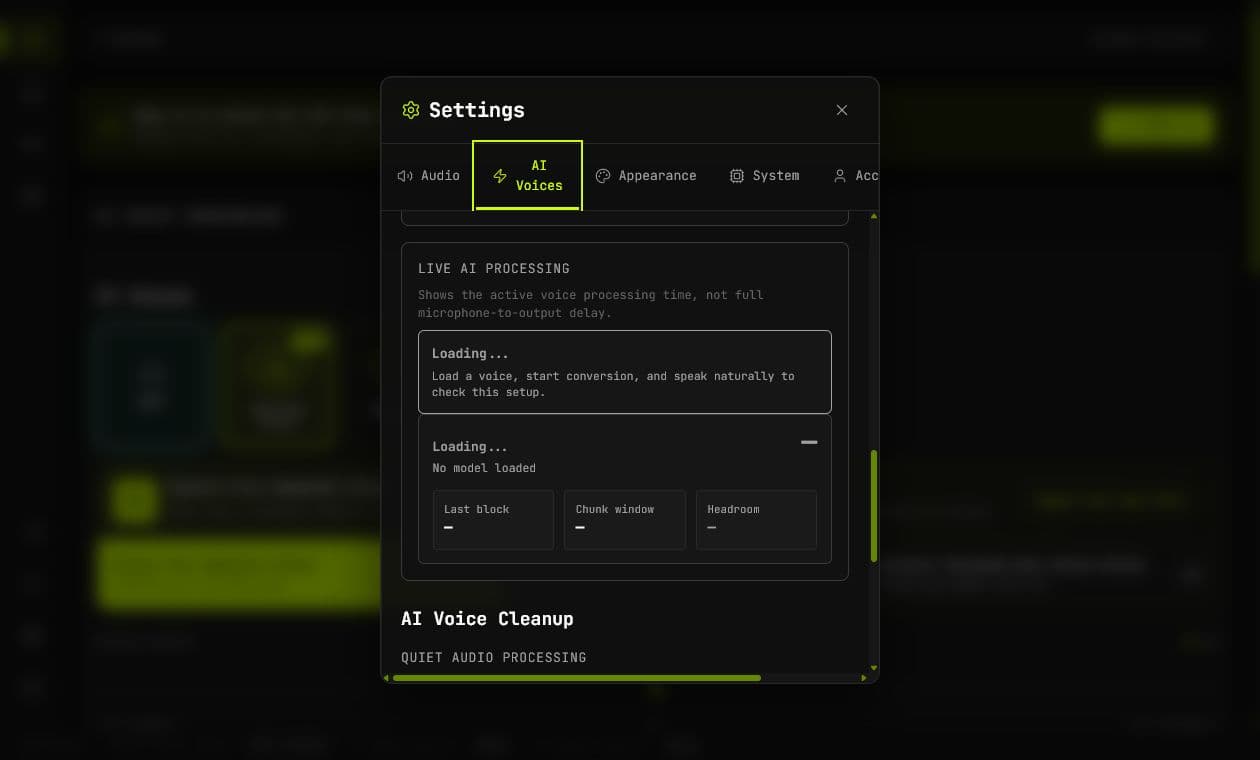
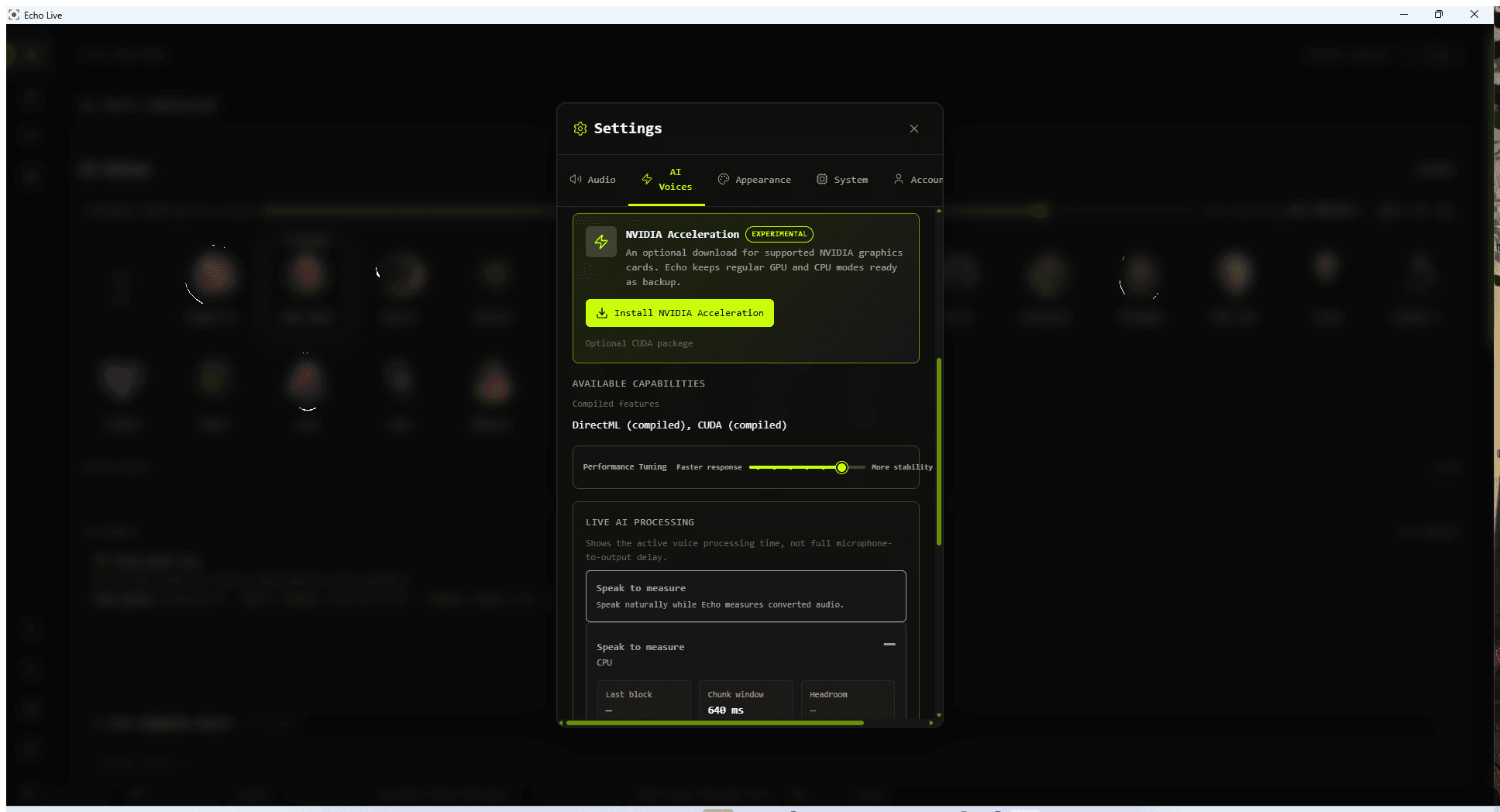
Performance Tuning runs from Faster response to More stability. Echo chooses a starting point from your selected backend and detected hardware, then checks the setup while you speak.
- If Echo is keeping up and you want less delay, try one step toward Faster response.
- If speech crackles, breaks, or Echo reports late chunks, move one step toward More stability.
- Change one step at a time, then speak naturally again before deciding.
Add Free Community Voices
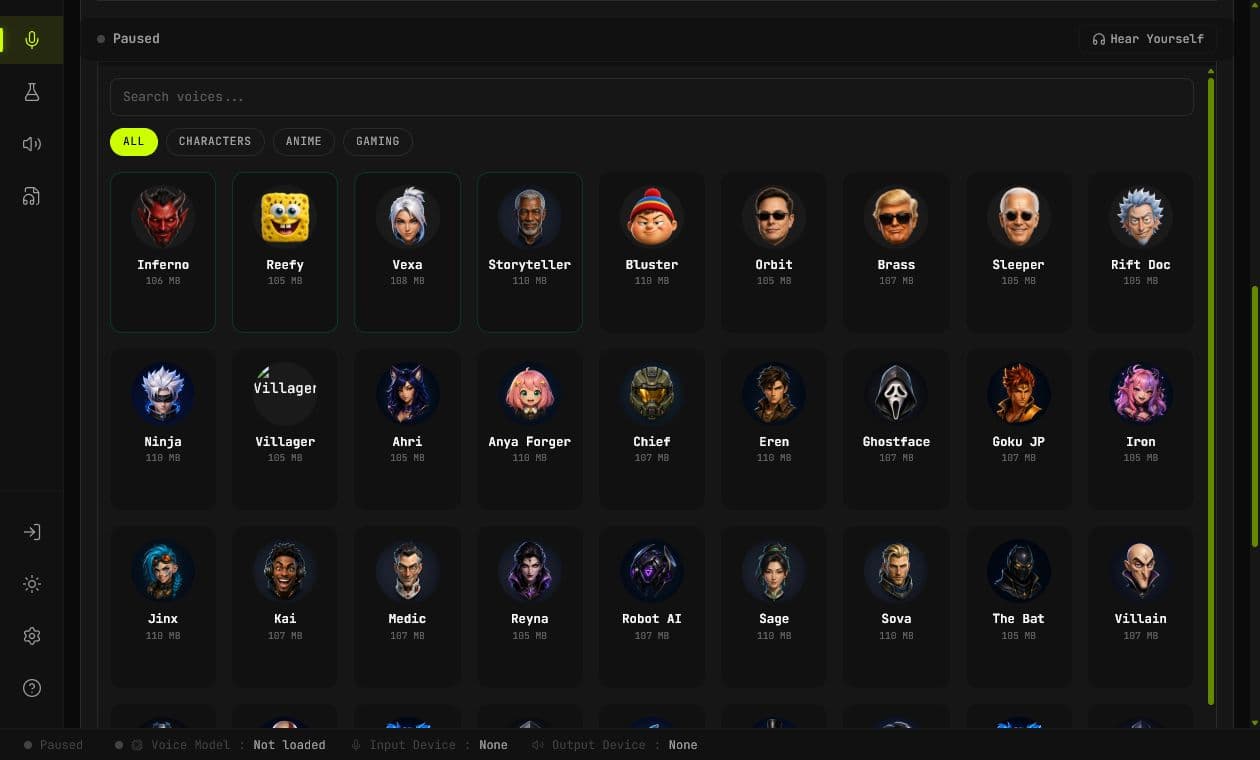
Click Add Free Voice or open Free Community Voices. You can search, filter, preview, and download voices from Echo's growing community library.

Send Echo to Discord
Echo sends processed audio into a virtual audio cable. Discord then uses the receiving side of that cable as its microphone.
- 1
Keep your real microphone inside Echo
Your physical microphone belongs in Echo's Input Device setting.
- 2
Send Echo into the cable
In Echo's Audio Output setting, use the detected virtual route.
- 3
Choose the cable in Discord
On Windows with VB-Cable, Discord normally uses CABLE Output as its input. On macOS, select the corresponding BlackHole input.
Set a Safe Output Level
- 1
Open Output Volume
Go to Settings > Audio and speak normally while watching the output meter.
- 2
Use Auto Level
Let Echo choose a sensible starting point for the loaded voice.
- 3
Avoid clipping
If Echo reports clipping, lower Output Volume before changing Discord or OBS gain.
Get Useful Help
When you report a problem, include the Echo version, operating system, exact visible error, selected backend, and whether Hear Yourself and the virtual output work.